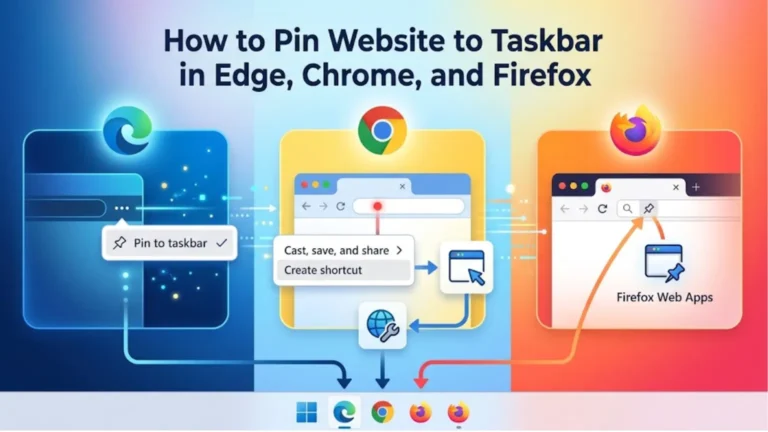
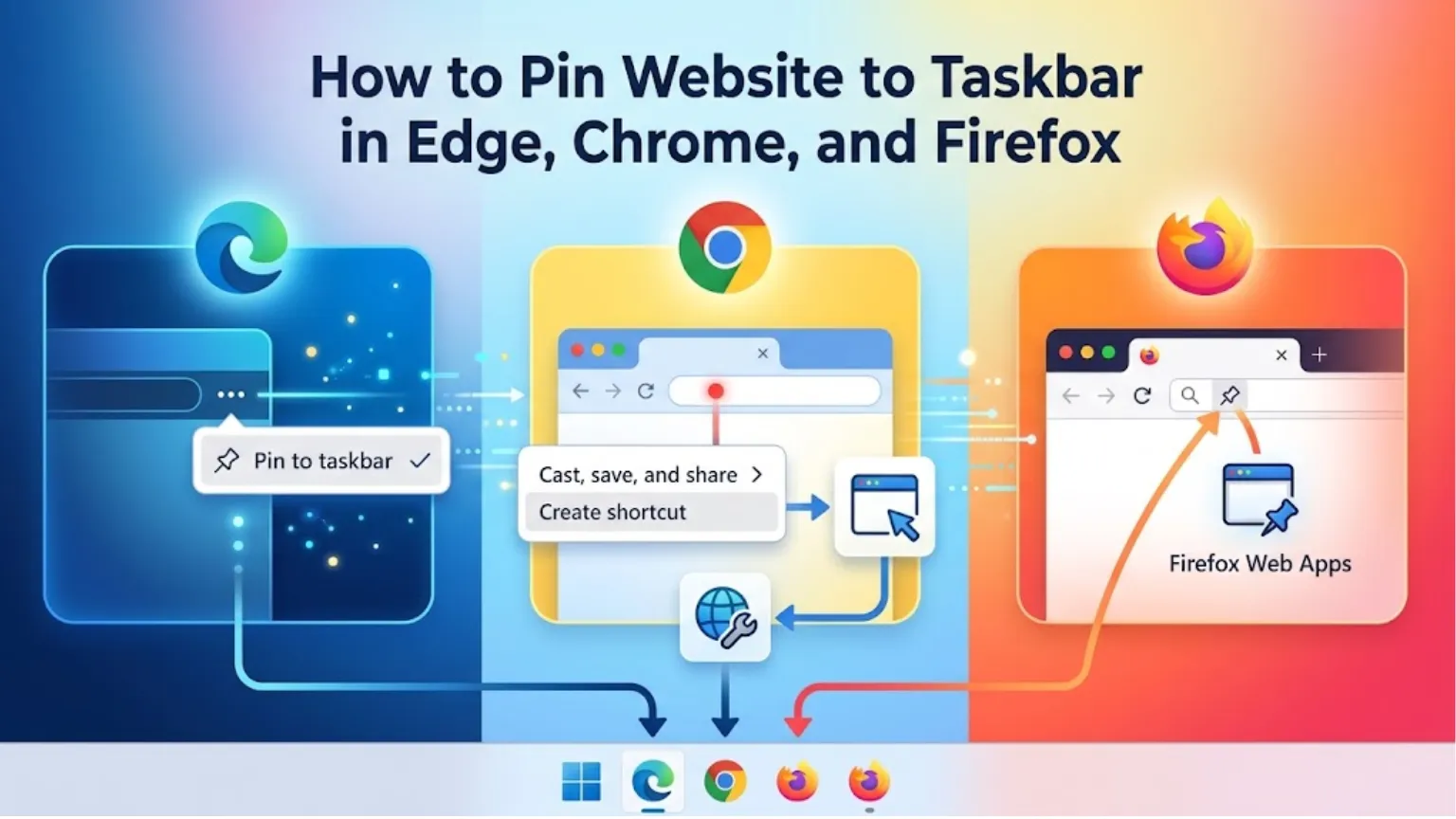
Which browser you use decides how to pin a website to the taskbar. Edge is the quickest: open the site, then choose Settings and more > More tools > Pin to taskbar. Chrome needs an extra step or two. Firefox, which used to be stuck with clumsy workarounds, now has a built-in option on Windows. The steps for each browser follow, along with fixes for the usual snags.
Shortcut or app: pick one before you start
Two different things can sit on your taskbar, and they don’t behave the same way. A pinned shortcut is a launcher. Click it, and your browser opens the site, usually in a tab. An installed web app gets a stripped-down window of its own, plus its own icon.
Say you keep a shared team calendar open from nine to five. The app version earns its spot, because you can find it without digging through twenty tabs. Now say you check an electricity-usage portal once a week. A plain pin is plenty. You can use both, each for different sites.
See Also: GNG Meaning in Text: What Does GNG Mean?
How to pin a website in Microsoft Edge
Edge needs no detour. Load the page, click the three dots in the top-right corner (Settings and more), open More tools, and pick Pin to taskbar. Confirm the prompt and the site’s icon appears on the taskbar.
For the app version, go to More tools > Apps > Install this site as an app, then confirm. To pin it afterward, type edge://apps into the address bar, select Details on the app’s card, and choose Pin to taskbar. That card also offers Pin to Start and Create Desktop shortcut.
How to pin a website in Google Chrome
Chrome skips the direct pin command, which means the job takes two steps.
Start with the plain shortcut: Chrome’s three-dot menu holds it under Cast, save, and share > Create shortcut. Name it, click Create, and a shortcut appears on your desktop. From there, right-click the desktop icon and select Pin to taskbar. On Windows 11, that command may be tucked under Show more options. Still no luck? The hand-built shortcut described near the end gets around it. Older Chrome versions put the shortcut command under More tools instead, so look there if the first menu doesn’t show it.
The app version starts at Cast, save, and share > Install page as app. Some sites also show an install icon at the right end of the address bar. With the app running, its icon sits on the taskbar. Right-click that icon and select Pin to taskbar to keep it there. Everything you’ve installed this way is listed at chrome://apps.
Browsers built on the same engine, Brave for one, follow similar steps. The menu labels differ a little.
How to pin a website in Firefox
Firefox 143 and later can run a site as a web app on Windows. Open the site and watch the address bar for the web apps button. Click it, and Firefox installs the site, puts it on your taskbar, and adds a Start menu shortcut. If a notification asks whether to pin it, say yes. Skipping that prompt isn’t a problem, because you can pin it afterward the way you would any program.
These apps are bare-bones. New tabs aren’t allowed, the address bar is read-only, and private browsing doesn’t support them. If you installed Firefox from the Microsoft Store, you need version 150 or newer. The feature is Windows-only for now. On an older version, use the manual shortcut fix below instead.
To remove one, click the web apps button inside the app window. The page moves back into regular Firefox, and if it was the last window for that site, the app is uninstalled. Unpinning alone leaves the Start menu entry behind.
See Also: Best Laptop for Small Business: How to Choose the Right One
When Pin to taskbar is missing or acts up
Dragging a link from the address bar onto the taskbar no longer works in Windows 11, so that old habit gets you nowhere. If a desktop item won’t offer the pin command at all, check what kind of file it is. A plain web link saved as an Internet shortcut often won’t, while a regular shortcut that points at the browser itself will. To build one, right-click the desktop and choose New > Shortcut. Open the Properties of your browser’s existing shortcut and copy its Target field, since install folders differ from one PC to the next. Paste that in, add a space, then type the site’s full address. Name it and finish. Then right-click the new shortcut, choose Show more options, and pick Pin to taskbar.
On a work or school computer, Edge’s own Pin to taskbar command may be missing. Microsoft says local browser and device settings can block it, and so can policies set for managed devices. On a managed PC, suspect the policy first. Only an administrator can change it.
Clicking a pinned shortcut and landing in a browser tab is normal behavior, since the pin only launches the site. Want the site in a window of its own? Install it as an app instead.
Duplicate icons are the other common annoyance. Pop-ups and extra windows from a pinned site can end up grouped under the browser’s main icon instead of the pinned one, and this can still happen in current Edge versions. If one site has left you with two icons, unpin every icon for it, close the browser completely, and pin the site once more.
To remove any pin, right-click its icon and choose Unpin from the taskbar.
See Also: How to Clean a Laptop Keyboard Safely
A note for Mac users
Macs have a Dock rather than a taskbar. In Safari on macOS Sonoma 14 or later, open the site and choose File > Add to Dock. Give it a name and click Add. The new web app opens from the Dock, and Spotlight will find it too.
About the Author