Introduction
Artificial intelligence has transformed the way people edit photos, making professional-quality results more accessible than ever. Instead of spending hours on complex tasks like removing objects, replacing backgrounds, or extending images, users can now complete these edits in minutes with the help of AI-powered tools.
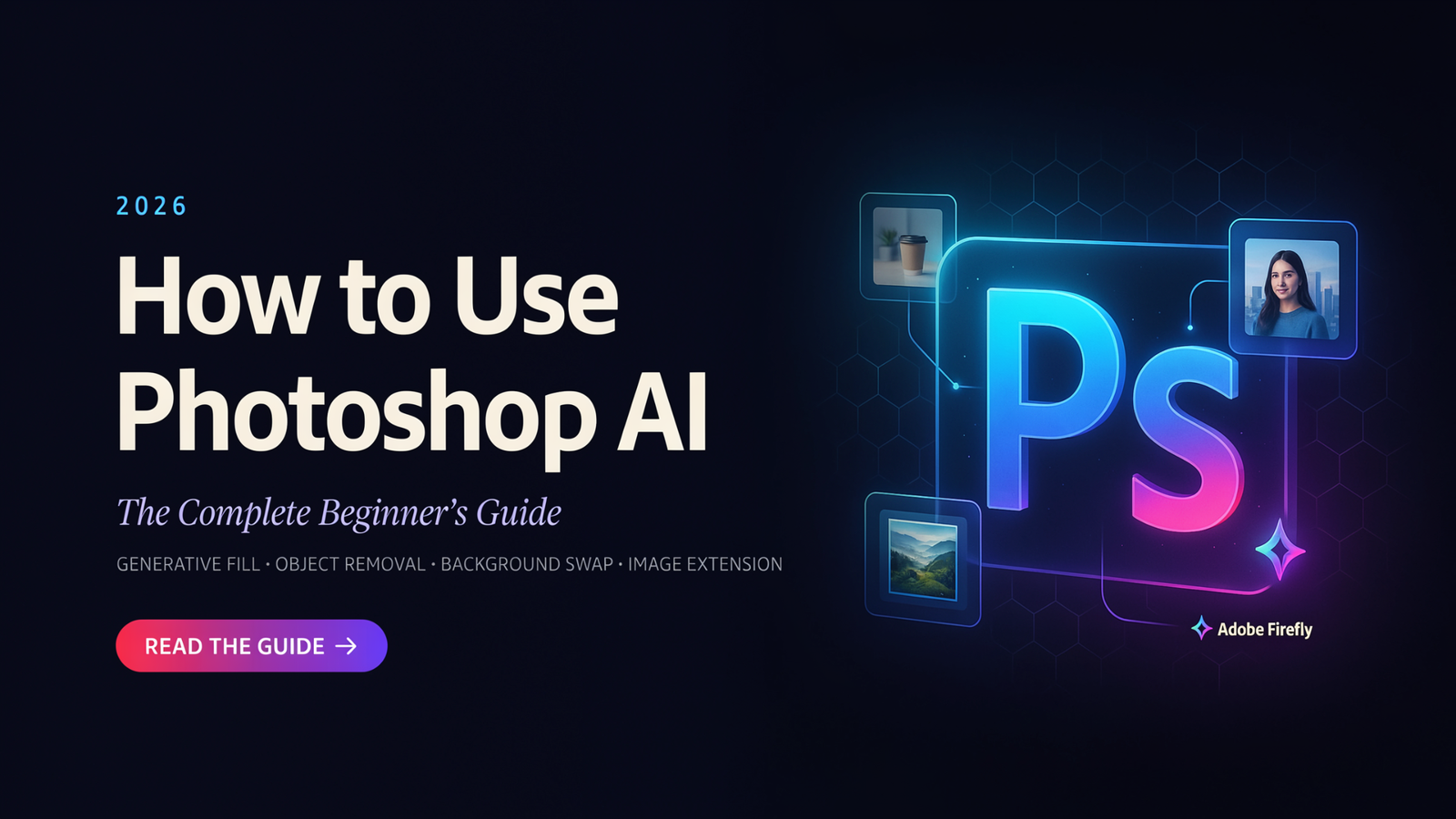
Photoshop AI is a collection of intelligent features built into Adobe Photoshop that streamline the editing process. Powered by Adobe Firefly, these tools can understand image content, generate realistic visuals from text prompts, and automate repetitive tasks while preserving image quality. Whether you’re a photographer, graphic designer, content creator, marketer, or beginner, Photoshop AI helps you work faster without sacrificing creativity.
In this guide, you’ll learn everything you need to know about using Photoshop AI effectively. We’ll explain how Photoshop AI works, walk you through its most powerful features, provide step-by-step tutorials, share practical editing tips, and explore real-world use cases. By the end of this article, you’ll have the knowledge and confidence to use Photoshop AI to create professional-looking images with ease.
What Is Photoshop AI?
Photoshop AI is a set of artificial intelligence features in Adobe Photoshop that make photo editing faster, easier, and more efficient. Instead of relying solely on manual tools, users can leverage AI to remove unwanted objects, generate realistic backgrounds, extend images beyond their original borders, and create entirely new visuals from text prompts. These intelligent features help reduce editing time while delivering professional-quality results.
At the heart of Photoshop AI is Adobe Firefly, Adobe’s generative AI technology designed specifically for creative workflows. Firefly uses advanced machine learning and computer vision to analyze images, understand their content, and generate new pixels that blend naturally with the original photo. Whether you’re replacing a sky, adding new objects, or expanding a canvas, Firefly produces realistic results while maintaining proper lighting, perspective, colors, and textures. Because many of these features rely on cloud processing, an internet connection is required for tools like Generative Fill and Text to Image.
One of the biggest advantages of Photoshop AI is its ability to enhance image editing without replacing your creative control. AI automates repetitive and time-consuming tasks, such as making precise selections, removing distractions, or generating realistic image elements, while allowing you to review multiple variations and refine the final output. This combination of automation and manual editing gives users greater flexibility and significantly improves productivity.
Photoshop AI is designed for a wide range of users. Professional photographers can quickly retouch portraits and improve product photos, while graphic designers can create marketing materials and digital artwork more efficiently. Content creators and social media managers can produce eye-catching visuals in less time, and beginners can achieve impressive results without mastering every advanced Photoshop technique. Whether you’re editing personal photos or working on commercial projects, Photoshop AI offers powerful tools that make image editing faster, smarter, and more accessible.
Why Use AI in Adobe Photoshop?
Artificial intelligence has changed the way people edit images by making complex tasks faster, easier, and more accessible. Instead of spending hours performing manual edits, Photoshop AI allows you to achieve professional-quality results with just a few clicks. Whether you’re creating marketing materials, editing portraits, or designing social media content, AI-powered tools help you work more efficiently while maintaining complete creative control.
One of the biggest advantages of Photoshop AI is its ability to save time on complex edits. Features like Generative Fill, Generative Expand, and the Remove Tool can instantly remove unwanted objects, replace backgrounds, or extend an image without requiring advanced editing skills. Tasks that once required minutes or even hours can now be completed in just seconds.
Photoshop AI also helps improve editing accuracy. Using advanced machine learning and computer vision, it analyzes an image’s lighting, colors, textures, and perspective to produce realistic edits that blend naturally with the original photo. This reduces the need for manual adjustments and delivers more polished, professional-looking results.
Another major benefit is the ability to generate creative ideas instantly. With tools such as Text to Image and Generative Fill, you can transform simple text prompts into unique visual elements, explore multiple design variations, and experiment with new concepts without starting from scratch. This makes Photoshop AI a valuable tool for brainstorming and accelerating creative workflows.
In addition, Photoshop AI can automate repetitive editing tasks. Selecting subjects, masking backgrounds, removing distractions, and enhancing portraits are all tasks that AI can perform quickly and accurately. By automating these routine processes, users can spend more time refining their designs and focusing on creativity instead of repetitive manual work.
Perhaps the greatest strength of Photoshop AI is that it is suitable for both beginners and professionals. Beginners can create impressive edits without mastering every Photoshop tool, while experienced designers and photographers can speed up their workflow and increase productivity. Whether you’re editing personal photos, creating digital artwork, or working on commercial projects, Photoshop AI provides powerful features that help you produce high-quality results with less effort.
How Does Photoshop AI Work?
Photoshop AI combines advanced artificial intelligence with Adobe’s creative technology to make image editing faster, smarter, and more accurate. Instead of relying entirely on manual editing techniques, Photoshop analyzes your image, understands its content, and performs complex tasks automatically. Whether you’re removing unwanted objects, generating new backgrounds, or creating images from text prompts, Photoshop AI uses powerful algorithms to deliver realistic results while preserving the quality of your original image.
The technology behind these features is Adobe Firefly, Adobe’s generative AI model designed specifically for creative professionals. Firefly has been trained on licensed and Adobe-owned content, allowing it to generate high-quality images and visual elements while supporting responsible AI development. It powers popular Photoshop features such as Generative Fill, Generative Expand, and Text to Image, enabling users to create or modify content simply by describing what they want.
Photoshop AI also relies on machine learning and computer vision to understand the contents of an image. It can recognize people, objects, backgrounds, colors, lighting, textures, and depth, allowing it to make intelligent editing decisions. For example, when you remove an object from a photo, Photoshop analyzes the surrounding pixels and recreates the missing area so the edit blends naturally with the rest of the image.
Many of Photoshop’s AI capabilities use cloud-based processing. When you submit a text prompt or use generative features, the request is securely processed on Adobe’s cloud servers rather than entirely on your computer. This cloud-based approach provides access to more advanced AI models and ensures users receive accurate, high-quality results. As a result, an active internet connection is required for features like Generative Fill, Generative Expand, and Text to Image.
One of the most impressive aspects of Photoshop AI is its ability to generate images from text prompts. Type a description such as “snow-covered mountain landscape at sunrise” or “modern office with wooden furniture”, and the AI creates multiple image variations based on your instructions. The more descriptive your prompt, the more accurately Photoshop can match your creative vision.
Another core capability is AI-powered object recognition. Photoshop can automatically identify subjects, people, animals, products, skies, and other elements within an image. This allows tools like Object Selection, Remove Tool, and Select Subject to make fast and precise selections without requiring detailed manual work. By combining object recognition with generative AI, Photoshop delivers edits that are both efficient and visually realistic, helping users complete complex projects in a fraction of the time.
Understanding How to Use Photoshop AI
Getting started with Photoshop AI is simple, even if you’re new to photo editing. Adobe has integrated its AI-powered tools directly into the Photoshop workspace, allowing users to perform advanced edits without learning complicated techniques. By following a few straightforward steps, you can create professional-quality images using features like Generative Fill, Generative Expand, Remove Tool, and Text to Image.
Install the Latest Version of Photoshop
Before using AI features, make sure you have the latest version of Adobe Photoshop installed through the Adobe Creative Cloud desktop app. AI-powered tools are only available in recent versions of Photoshop, so keeping the software updated ensures you have access to the newest features, performance improvements, and security updates.
Sign In with Your Adobe Account
Once Photoshop is installed, sign in with your Adobe account. An active Adobe account is required to access cloud-based AI features powered by Adobe Firefly. Depending on your subscription plan, you’ll also receive a monthly allocation of generative credits for AI-powered image generation.
Open an Image
Launch Photoshop and open the image you want to edit by selecting File > Open or dragging your image directly into the workspace. Photoshop AI works with a variety of image formats, including JPEG, PNG, PSD, and TIFF, making it suitable for both personal and professional editing projects.
Select an AI-Powered Tool
Choose the AI feature that best matches your editing goal. For example, use Generative Fill to add or replace objects, Generative Expand to enlarge your canvas, Remove Tool to erase unwanted elements, or Text to Image to create entirely new visuals from a written description. Most AI tools are available from the toolbar or the Contextual Task Bar.
Make a Selection
Use a selection tool such as the Object Selection Tool, Lasso Tool, or Marquee Tool to highlight the area you want to edit. A precise selection helps Photoshop understand exactly where the AI-generated content should appear, resulting in more accurate and natural-looking edits.
Enter a Text Prompt (If Needed)
Some AI features, such as Generative Fill and Text to Image, allow you to describe what you want using natural language. For example, you could enter prompts like “wooden dining table”, “tropical beach at sunset”, or “modern office interior with large windows.” If you’re removing an object, you can often leave the prompt blank and let Photoshop intelligently fill the selected area based on the surrounding image.
Generate Multiple Variations
After submitting your prompt, Photoshop AI creates several image variations. Review each option and compare the results to determine which version best matches your creative vision. If none of the generated images meet your expectations, you can regenerate additional variations or refine your prompt for more accurate results.
Apply and Refine Your Edits
Once you’ve chosen your preferred variation, apply it to your image. You can then use traditional Photoshop tools such as layer masks, adjustment layers, brushes, and blending modes to fine-tune the edit. Combining AI-generated content with manual adjustments gives you greater creative control and helps achieve a polished, professional finish.
Save or Export Your Project
After completing your edits, save your work as a PSD file if you want to preserve layers for future changes. If you’re ready to share or publish your image, export it in formats such as JPEG, PNG, or WebP by selecting File > Export. Choosing the appropriate format and resolution ensures your final image looks its best across websites, social media platforms, and print materials.
System Requirements for Photoshop AI
Before using Photoshop AI features such as Generative Fill, Generative Expand, and Text to Image, it’s important to ensure your computer and software meet Adobe’s requirements. Since many AI-powered tools rely on cloud processing, having the correct subscription, software version, and hardware will help you achieve the best performance and editing experience.
Adobe Creative Cloud Subscription
To access Photoshop AI, you need an active Adobe Creative Cloud subscription that includes Photoshop. AI-powered features are available with eligible Photoshop plans, including the Photography Plan and Creative Cloud All Apps plan. After signing in with your Adobe account, you’ll receive generative credits that can be used with Adobe Firefly-powered tools.
Compatible Photoshop Version
Photoshop AI features are only available in recent versions of Adobe Photoshop. To use tools like Generative Fill, Generative Expand, and Text to Image, install the latest version through the Adobe Creative Cloud desktop application. Keeping Photoshop updated also ensures you receive new AI features, bug fixes, and performance improvements as Adobe releases them.
Internet Connection
A stable internet connection is required for most Photoshop AI features. When you generate images, remove objects, or create content from text prompts, your request is securely processed using Adobe Firefly’s cloud-based AI technology. Without an internet connection, these generative features will not function, although many traditional Photoshop editing tools will continue to work normally.
Supported Operating Systems
Photoshop AI is supported on both Windows and macOS. To ensure compatibility and optimal performance, use a supported version of your operating system and install the latest system updates. Running an outdated operating system may prevent certain AI features from working correctly or reduce overall application performance.
Hardware Requirements
Although Photoshop AI handles much of its processing in the cloud, your computer still needs sufficient hardware for a smooth editing experience. A modern multi-core processor, at least 16 GB of RAM (32 GB recommended for large projects), several gigabytes of available storage, and a graphics card that supports GPU acceleration can significantly improve performance. Using an SSD instead of a traditional hard drive also helps Photoshop open files, load AI features, and save projects more quickly.
Before starting an AI editing project, make sure your software is up to date, you’re signed in to your Adobe account, and your internet connection is stable. Meeting these requirements will help you use Photoshop AI efficiently and minimize interruptions while editing.
AI-Powered Tools in Photoshop
Adobe Photoshop includes a wide range of AI-powered tools designed to simplify complex editing tasks while giving users greater creative freedom. Powered by Adobe Firefly and advanced machine learning technology, these tools can automatically recognize image elements, generate realistic content, and speed up professional editing workflows. Whether you’re creating digital artwork, editing portraits, or designing marketing materials, these AI features help you achieve high-quality results in less time.
Generative Fill
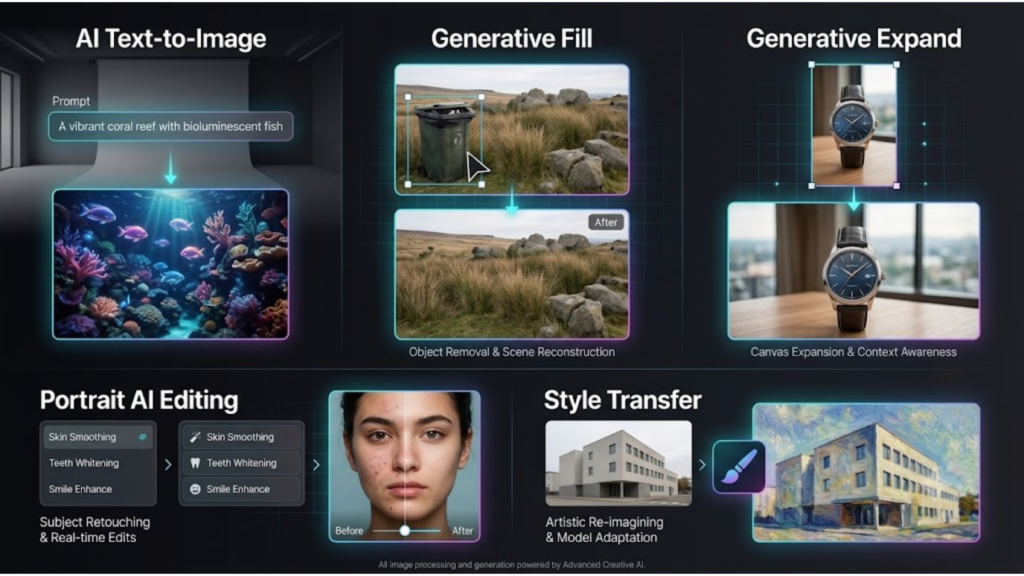
Generative Fill is one of Photoshop’s most powerful AI features. It allows you to add, remove, or replace objects within an image using simple text prompts. Instead of manually cloning or blending pixels, Photoshop analyzes the selected area and creates realistic content that matches the surrounding lighting, colors, and perspective.
This tool is ideal for removing unwanted objects, adding new elements, changing backgrounds, expanding scenes, and creating creative compositions. To use it, make a selection, click Generative Fill, enter a descriptive prompt—or leave it blank to remove an object—and let Photoshop generate multiple variations for you to choose from.
Generative Expand
Generative Expand allows you to extend an image beyond its original borders without stretching or distorting the existing content. It intelligently generates new pixels that blend seamlessly with the original image, making it perfect for resizing photos or adapting them to different aspect ratios.
This feature is especially useful when creating website banners, social media posts, presentation slides, or print designs that require additional space around the subject. The AI preserves lighting, textures, and perspective, helping expanded images appear natural and professionally edited.
Text to Image
Text to Image enables you to create entirely new visuals using written descriptions. Type a prompt describing the image you want, and Photoshop generates multiple AI-created variations that match your request.
For the best results, use detailed prompts such as “a modern office workspace with natural lighting,” “a snow-covered mountain at sunrise,” or “a minimalist living room with wooden furniture.” More specific descriptions typically produce more accurate and realistic images. accurate and visually appealing images.
Generate Background
The Generate Background feature makes it easy to replace plain or distracting backgrounds with realistic AI-generated scenes. Instead of manually masking complex subjects and searching for stock images, you can create a completely new environment directly inside Photoshop.
Whether you want to place a product on a clean studio backdrop, move a portrait to a tropical beach, or create a futuristic cityscape, AI generates backgrounds that match the lighting and perspective of your original image for a natural result.
Remove Tool
The Remove Tool uses AI to erase unwanted objects, blemishes, wires, logos, or distractions while automatically reconstructing the surrounding area. Unlike traditional healing tools, it understands nearby textures and patterns to create cleaner, more convincing edits.
This feature is particularly useful for portrait retouching, product photography, travel images, and real estate photography where distracting elements need to disappear without leaving visible editing marks.
Distraction Removal
Distraction Removal is designed to eliminate common visual distractions from photographs quickly. Photoshop AI can identify and remove people in the background, overhead wires, reflections on windows, and other unwanted elements that take attention away from the main subject.
This tool is especially valuable for landscape photography, architecture, travel photography, and street photography where small distractions can reduce the overall impact of an image.
Object Selection Tool
The Object Selection Tool uses AI-powered object recognition to detect and select people, animals, products, vehicles, and other objects with remarkable accuracy. Instead of tracing objects manually, hover over or click the desired subject to create a precise selection.
This significantly speeds up workflows involving background removal, masking, color adjustments, and object replacements while reducing the amount of manual refinement required.
Neural Filters
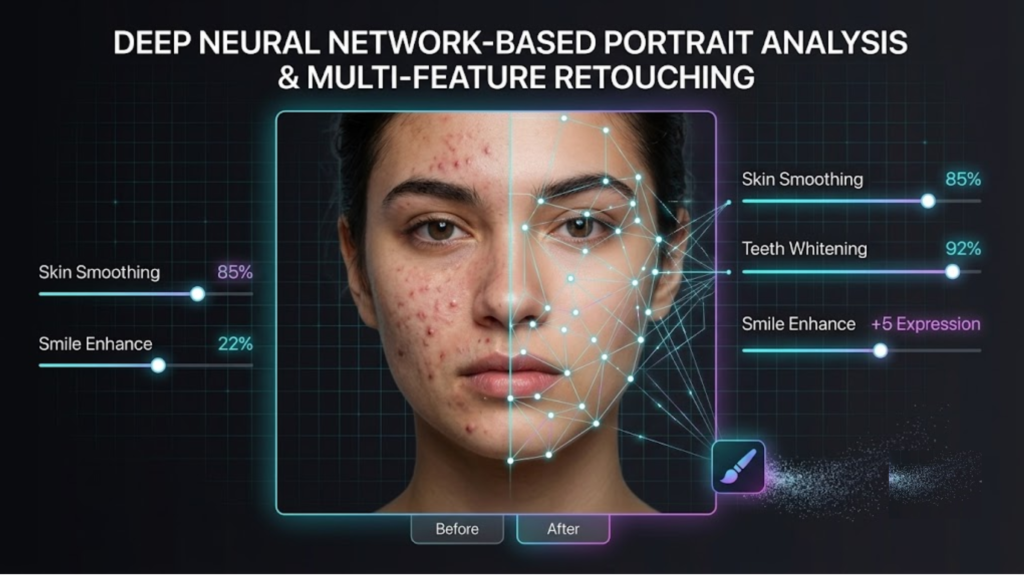
Neural Filters use artificial intelligence to automate advanced image enhancements that previously required extensive manual editing. These filters can smooth skin, improve facial features, restore old photographs, colorize black-and-white images, adjust expressions, and enhance portraits with just a few clicks.
They provide photographers and designers with powerful creative options while maintaining a natural appearance, making portrait editing faster and more efficient.
Sky Replacement
Sky Replacement automatically detects the sky in an image and replaces it with a new one while matching the lighting, color, and atmosphere of the original photo. This allows you to transform dull, overcast skies into vibrant sunsets, dramatic clouds, or clear blue skies without spending time creating complex masks.
The AI also adjusts foreground lighting and color tones to ensure the replacement looks realistic and blends naturally with the rest of the scene.
AI Selection & Masking
AI Selection and Masking simplify one of the most time-consuming parts of image editing. Photoshop can automatically identify subjects and generate accurate masks with minimal user input. It also refines difficult edges around hair, fur, clothing, and other detailed areas, producing cleaner selections than traditional methods.
This feature is especially useful when replacing backgrounds, creating composites, applying selective adjustments, or preparing images for professional design projects. By reducing manual masking work, AI helps users edit faster while maintaining high levels of precision.
How to Use Photoshop AI (Step-by-Step Tutorial)
Using Photoshop AI is straightforward, even if you’ve never used AI-powered editing tools before. Whether you want to remove unwanted objects, generate new backgrounds, or create images from text prompts, the process follows the same basic workflow. By following these steps, you can take full advantage of Adobe Photoshop’s AI features and produce professional-quality edits with minimal effort.
Step 1 – Open Your Image
Launch Adobe Photoshop and open the image you want to edit by selecting File > Open or dragging your image into the workspace. Photoshop supports popular file formats such as JPEG, PNG, TIFF, PSD, and RAW files. Starting with a high-resolution image generally produces better AI-generated results because the software has more visual information to analyze.
Step 2 – Choose an AI Tool
Next, decide which AI-powered feature best suits your editing goal. If you want to add or replace objects, choose Generative Fill. To extend an image beyond its original borders, select Generative Expand. If you want to remove unwanted objects or distractions, use the Remove Tool or the Distraction Removal feature. For creating brand-new visuals from written descriptions, use Text to Image. Selecting the right tool at the beginning helps streamline your editing workflow.
Step 3 – Make a Selection
Use Photoshop’s selection tools to highlight the area you want to edit. The Object Selection Tool, Lasso Tool, Marquee Tool, or Quick Selection Tool can all be used depending on your project. A clean and accurate selection gives Photoshop AI a clear understanding of where to apply the edit, resulting in more realistic and natural-looking outputs.
Step 4 – Enter a Prompt
If you’re using a generative feature, type a clear and descriptive text prompt explaining what you want Photoshop to create. For example, you could enter prompts like “wooden dining table,” “modern office interior,” or “snow-covered mountain landscape at sunrise.” The more specific your description, the better the generated results. If your goal is to remove an object, you can often leave the prompt blank and allow Photoshop to fill the selected area using surrounding image data intelligently.
Step 5 – Generate Results
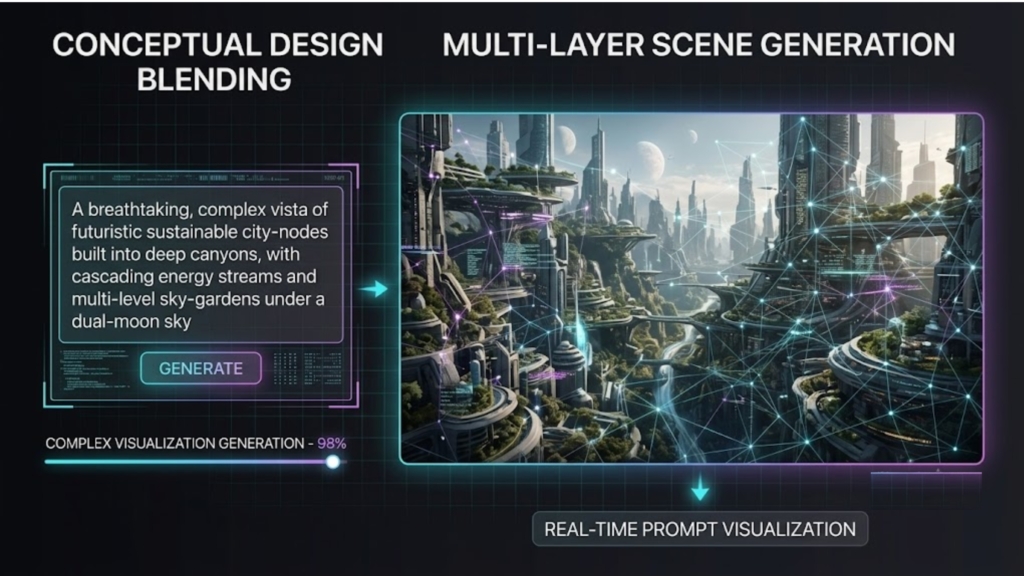
After entering your prompt, click Generate. Photoshop sends your request to Adobe Firefly’s AI engine, which analyzes the image and creates several realistic variations. This process usually takes only a few seconds, depending on your internet connection and the complexity of the edit.
Step 6 – Compare Variations
Photoshop typically generates multiple versions of your requested edit. Carefully review each variation and compare details such as lighting, colors, textures, perspective, and overall realism. If none of the options fully match your vision, you can generate additional variations or modify your prompt to achieve more accurate results.
Step 7 – Refine the Image
Once you’ve selected the best variation, use Photoshop’s traditional editing tools to fine-tune the result. You can adjust brightness, contrast, colors, shadows, and sharpness, or use layer masks and adjustment layers to blend AI-generated content seamlessly into the original image. Combining AI features with manual editing often produces the most polished and professional outcome.
Step 8 – Export the Final Design
After completing your edits, save your project as a PSD file if you plan to make future changes while preserving all layers. If you’re ready to publish or share the image, export it in an appropriate format such as JPEG, PNG, or WebP. Choose the correct image quality and dimensions based on whether the design is intended for websites, social media, digital marketing, or print. Before exporting, review the final image one last time to ensure every edit looks natural and aligns with your creative vision.
8 Practical Ways to Use Photoshop AI
Photoshop AI isn’t just a collection of advanced editing tools—it’s a practical solution for everyday creative tasks. From removing distractions in photos to designing marketing campaigns, AI-powered features can dramatically improve your workflow while reducing the time spent on manual editing. Below are some of the most effective ways to use Photoshop AI in real-world projects.
Remove Unwanted Objects
One of the most popular uses of Photoshop AI is removing unwanted objects from photos. Whether it’s a person in the background, a power line, a logo, or an unwanted shadow, tools like Generative Fill and the Remove Tool can erase distractions in seconds. Photoshop analyzes the surrounding area and intelligently recreates the missing pixels, producing a clean and natural-looking result without obvious editing marks.
Replace Backgrounds
Changing a background no longer requires complex masking techniques. Photoshop AI can automatically detect the main subject and replace the existing background with a realistic alternative. Whether you want a studio backdrop for product photography, a tropical beach for portraits, or a modern office for business images, AI generates backgrounds that blend naturally with the original lighting and perspective.
Extend Images
Sometimes an image doesn’t have enough space for a website banner, social media cover, or presentation slide. Generative Expand solves this problem by extending the canvas and creating new image content around the original photo. Instead of stretching pixels, Photoshop generates realistic details that match the existing scene, allowing you to resize images without compromising quality.
Create Images from Text
Photoshop AI can generate entirely new images using simple text prompts. Describe the scene you want, such as “futuristic city at sunset” or “cozy wooden cabin in a snowy forest,” and the AI will create multiple image variations based on your description. This feature is ideal for concept art, digital illustrations, blog graphics, and creative design projects where stock photos may not meet your needs.
Add Realistic Objects
Need to add an object that wasn’t in the original photo? With Generative Fill, you can insert realistic elements simply by describing them. Add furniture to an empty room, place decorative items on a table, insert vehicles into a street scene, or enhance landscapes with trees and flowers. Photoshop automatically adjusts lighting, shadows, colors, and perspective so the new object appears naturally integrated into the image.
Restore Old Photos
Photoshop AI simplifies the restoration of old, faded, and damaged photographs with intelligent editing tools. AI-powered tools can remove scratches, repair faded areas, improve image quality, and even colorize black-and-white photos using Neural Filters. This allows users to preserve family memories, historical photographs, and vintage images while reducing the amount of manual retouching required.
Design Social Media Graphics
Content creators and marketers can use Photoshop AI to produce engaging social media visuals in less time. Generate custom backgrounds, remove distracting elements, create promotional graphics, and resize images for platforms like Instagram, Facebook, LinkedIn, Pinterest, and X. AI-powered editing helps maintain a professional appearance while speeding up the content creation process.
Create Marketing Materials
Businesses and designers can use Photoshop AI to create professional marketing assets such as advertisements, website banners, email graphics, brochures, flyers, posters, and product promotions. Instead of searching for multiple stock images or spending hours editing visuals, AI allows you to generate custom content, replace backgrounds, add new design elements, and quickly create polished materials that align with your brand identity.
By combining these practical applications with Photoshop’s traditional editing tools, you can complete projects faster, improve image quality, and explore creative ideas that would otherwise require significant time and technical expertise. Whether you’re a beginner or an experienced designer, Photoshop AI provides versatile solutions for nearly every type of image editing project.
Best Photoshop AI Prompt Examples
The quality of your AI-generated results depends heavily on the prompts you provide. A well-written prompt gives Photoshop AI enough context to understand your creative vision, resulting in more accurate, realistic, and visually appealing images. Instead of using short or vague descriptions, include details about the subject, lighting, style, colors, background, perspective, and mood. The examples below can help you write effective prompts for different editing scenarios.
Product Photography
Photoshop AI helps you create professional-quality product images for eCommerce stores, advertisements, and social media with minimal effort. Use prompts that describe the product environment, lighting, and overall style.
Example prompts:
- Minimalist white studio background with soft natural lighting.
- Luxury marble surface with premium product display and subtle shadows.
- Wooden table with warm morning sunlight and blurred café background.
- Modern office desk setup with realistic reflections and soft lighting.
- Elegant cosmetic product surrounded by flowers with high-end commercial photography.
Portrait Editing
AI can enhance portraits or generate entirely new portrait environments while maintaining natural facial details. Adding information about lighting, camera angle, and atmosphere produces more realistic results.
Example prompts:
- Professional business portrait in a modern office with soft window lighting.
- Golden hour outdoor portrait with warm sunlight and shallow depth of field.
- Cinematic portrait with dramatic lighting and dark background.
- Natural skin tones with clean studio lighting and realistic facial details.
- Urban street portrait with colorful neon lights at night.
Background Replacement
Replacing a background becomes more effective when your prompt includes details about the location, weather, lighting, and overall atmosphere. This helps Photoshop generate scenes that blend naturally with the subject.
Example prompts:
- Tropical beach with crystal-clear water and bright blue sky.
- Modern luxury living room with large windows and natural daylight.
- Snow-covered mountain landscape during sunrise.
- Busy city skyline at night with glowing lights.
- Cozy coffee shop interior with warm ambient lighting.
Landscape Creation
Photoshop AI can generate beautiful natural environments for travel photography, digital artwork, and website banners. Descriptive prompts help create more detailed and immersive landscapes.
Example prompts:
- Peaceful mountain lake surrounded by pine trees at sunrise.
- Desert landscape with golden dunes under a colorful sunset.
- Waterfall flowing through a lush green rainforest.
- Rolling countryside with wildflowers beneath dramatic clouds.
- Northern Lights illuminating a snowy forest at night.
Fantasy Art
Generative AI is an excellent tool for creating imaginative artwork and fictional scenes. Include artistic style, colors, mood, and environmental details to produce visually striking results.
Example prompts:
- Floating castle above the clouds with magical glowing waterfalls.
- Ancient dragon flying over a medieval kingdom during sunset.
- Enchanted forest filled with glowing mushrooms and mystical creatures.
- Futuristic cyberpunk city with neon lights and flying vehicles.
- Wizard standing on a mountain surrounded by magical energy.
Logo Mockups
Photoshop AI can generate realistic presentations that showcase logos in professional settings. These mockups are useful for branding projects, client presentations, and portfolio work.
Example prompts:
- Embossed silver logo on a matte black business card.
- Luxury gold logo engraved on a marble wall.
- Modern office reception wall featuring a 3D company logo.
- Minimalist storefront sign with realistic shadows and reflections.
- Premium leather notebook with embossed company logo.
Writing clear and descriptive prompts is one of the best ways to improve your Photoshop AI workflow. The more specific your instructions are, the better Photoshop can understand your intent and generate high-quality results. Don’t hesitate to experiment with different wording, styles, lighting conditions, and artistic directions to discover new creative possibilities.
Photoshop AI Tips for Better Results
Photoshop AI can produce impressive edits in just a few clicks, but the quality of the final image often depends on how you use the tools. Writing effective prompts, making accurate selections, and combining AI with traditional editing techniques can significantly improve your results. The following tips will help you create more realistic, professional-looking images while avoiding common editing mistakes.
Write Specific Prompts
The more detailed your prompt is, the better Photoshop AI can understand your request. Instead of using a single word like “car” or “tree,” describe the object, environment, lighting, style, and mood.
For example, instead of writing “car,” try:
- Red luxury sports car parked on a modern city street at sunset.
- Vintage blue pickup truck on a country road with golden hour lighting.
Adding descriptive details helps Photoshop generate images that closely match your creative vision and reduces the need for repeated edits.
Leave the Prompt Blank for Object Removal
When removing unwanted objects with Generative Fill, you don’t always need to enter a prompt. Select the object you want to remove and click Generate while leaving the prompt field empty.
Photoshop AI analyzes the surrounding pixels and intelligently fills the selected area with content that matches the image. This method often produces cleaner and more natural-looking results than manually describing what should replace the object.
Make Precise Selections
Accurate selections are essential for high-quality AI edits. Before using Generative Fill or other AI-powered features, carefully select only the area you want to modify using tools like the Object Selection Tool, Lasso Tool, or Quick Selection Tool.
Avoid selecting unnecessarily large areas, as this may confuse the AI and produce unrealistic results. Smaller, well-defined selections generally lead to cleaner edits and better object placement.
Generate Multiple Variations
Photoshop AI usually creates several variations for every prompt. Instead of choosing the first result immediately, review all available options and compare details such as lighting, perspective, textures, and overall realism.
If none of the generated images fully match your expectations, regenerate additional variations or slightly adjust your prompt. Testing multiple versions often leads to a much better final result.
Combine AI with Manual Editing
Although Photoshop AI is powerful, the best results often come from combining AI-generated content with traditional Photoshop tools. After generating an image, use Adjustment Layers, Layer Masks, Brush Tool, Clone Stamp, Healing Brush, or Color Correction tools to refine the final design.
Manual adjustments allow you to improve shadows, colors, sharpness, and fine details while ensuring AI-generated elements blend naturally with the original image.
Use High-Resolution Images
Starting with a high-resolution image gives Photoshop AI more visual information to work with, leading to sharper and more realistic edits. Low-quality or heavily compressed images may produce blurry edges, distorted textures, or less accurate AI generations.
Whenever possible, use original photos or high-resolution files, especially for professional projects such as product photography, advertising, print materials, and commercial designs.
By following these best practices, you can maximize the capabilities of Photoshop AI and consistently achieve cleaner, more realistic, and professional-quality edits. As you gain experience, experimenting with different prompts, selections, and editing techniques will help you unlock even more creative possibilities.
Common Photoshop AI Mistakes to Avoid
Photoshop AI can produce impressive results, but even the most advanced AI tools are only as effective as the way they’re used. Small mistakes—such as writing unclear prompts or making inaccurate selections—can lead to unrealistic edits and unnecessary rework. Understanding these common pitfalls will help you achieve cleaner, more professional results while making the most of Photoshop’s AI-powered features.
Using Vague Prompts
One of the most common mistakes is using prompts that are too short or unclear. A prompt like “house” or “tree” gives the AI very little information, which often results in generic or inaccurate images.
Instead, describe the subject in more detail by including elements such as the environment, lighting, colors, style, and mood. For example, a prompt like “modern glass house surrounded by pine trees during sunset with warm golden lighting” provides much clearer guidance and typically produces better results.
Selecting Too Much of the Image
The size of your selection has a significant impact on the quality of AI-generated edits. Selecting a very large area when only a small object needs to be changed can confuse Photoshop AI and produce unrealistic or inconsistent results.
Whenever possible, make precise selections that closely follow the object or area you want to edit. Smaller, accurate selections allow the AI to understand the surrounding context better and generate more natural-looking content.
Ignoring Lighting and Perspective
AI-generated objects and backgrounds should match the original image’s lighting, shadows, colors, and viewing angle. Ignoring these details can make edits appear artificial or out of place.
Before applying an AI-generated element, compare its lighting direction, perspective, and color tones with the rest of the image. If needed, use Photoshop’s adjustment tools to fine-tune brightness, contrast, shadows, and color balance so everything blends seamlessly.
Expecting Perfect Results on the First Attempt
Although Photoshop AI is highly capable, it doesn’t always generate the perfect image on the first try. Many users make the mistake of accepting the initial result without exploring other options.
Instead, review all available variations, refine your prompt, or generate additional versions until you achieve the desired outcome. A few small adjustments can often make a significant difference in the final quality of your edit.
Overusing AI-Generated Elements
While AI can speed up the creative process, relying on it for every aspect of an image can make designs look unnatural or inconsistent. Filling a composition with too many AI-generated objects may result in mismatched styles, unrealistic details, or a cluttered appearance.
Use AI as a creative assistant rather than a complete replacement for traditional editing. Combining AI-generated content with manual adjustments, thoughtful composition, and your own design skills will usually produce the most polished and professional results.
By avoiding these common mistakes and following best practices, you’ll be able to use Photoshop AI more effectively, create realistic edits, and maintain complete control over your creative projects.
Benefits of Photoshop AI
Photoshop AI has transformed modern image editing by making advanced creative tools more accessible and efficient. Whether you’re editing personal photos, designing marketing materials, or creating digital artwork, AI-powered features can help you work faster while maintaining high-quality results. From automating repetitive tasks to generating entirely new visual content, Photoshop AI offers numerous advantages for beginners and experienced professionals alike.
Faster Workflow
One of the biggest benefits of Photoshop AI is the significant time it saves during the editing process. Tasks that once required time-consuming manual editing—such as removing unwanted objects, replacing backgrounds, extending images, or making precise selections—can now be completed in just a few clicks with Photoshop AI.
Features like Generative Fill, Generative Expand, and the Remove Tool automate time-consuming edits, allowing photographers, designers, and content creators to complete projects more efficiently and meet tight deadlines.
Professional-Quality Edits
Photoshop AI is designed to produce realistic and polished results. Powered by Adobe Firefly, it analyzes lighting, textures, colors, shadows, and perspective to ensure that AI-generated content blends naturally with the original image.
Whether you’re creating product photos, retouching portraits, or designing promotional graphics, Photoshop AI helps you achieve professional-quality edits without spending hours on manual adjustments.
Increased Creativity
AI doesn’t replace creativity—it enhances it. Instead of starting every project from scratch, you can quickly generate ideas, experiment with different styles, and explore multiple design concepts using simple text prompts.
Features like Text to Image and Generative Fill make it easy to visualize creative ideas, test alternative compositions, and produce unique artwork. This allows designers and creators to focus more on innovation and less on repetitive editing tasks.
Easier for Beginners
Traditional Photoshop editing often requires time and practice to master. Photoshop AI makes many advanced editing techniques more approachable by automating complex processes such as object selection, background replacement, masking, and content generation.
Beginners can achieve impressive results with minimal experience, while still learning Photoshop’s core tools at their own pace. The intuitive AI features reduce the learning curve and help new users build confidence more quickly.
Reduced Manual Work
Many repetitive editing tasks can now be completed automatically with Photoshop AI. Instead of manually cloning pixels, tracing selections, or spending time perfecting masks, AI performs these tasks with remarkable accuracy.
This reduction in manual work not only increases productivity but also allows professionals to dedicate more time to refining their designs, developing creative concepts, and delivering higher-quality projects. By combining AI-powered automation with traditional editing techniques, users can achieve faster workflows without sacrificing creative control.
Overall, Photoshop AI helps users edit smarter rather than harder. Its ability to automate routine tasks, generate realistic content, and streamline complex workflows makes it an invaluable tool for photographers, graphic designers, marketers, and anyone looking to create professional-quality images more efficiently.
Limitations of Photoshop AI
While Photoshop AI offers powerful tools that can significantly improve your editing workflow, it’s important to understand its limitations. Like any artificial intelligence technology, it isn’t perfect and may not always produce the exact result you expect. Knowing these limitations can help you use Photoshop AI more effectively and decide when manual editing is still the better option.
Internet Connection Is Required
Many of Photoshop’s AI-powered features, including Generative Fill, Generative Expand, and Text to Image, rely on Adobe Firefly’s cloud-based processing. When you submit a prompt or generate AI content, Photoshop sends the request to Adobe’s servers for processing.
Because of this, a stable internet connection is required to use most generative AI features. If you’re offline or have a slow connection, these tools may be unavailable or take longer to generate results. However, traditional Photoshop editing tools can still be used without an internet connection.
An Active Subscription Is Needed
Photoshop AI is available through eligible Adobe Creative Cloud subscription plans. While Adobe occasionally offers a free trial, continued access to AI features requires an active subscription.
In addition, Adobe uses a system of generative credits for certain AI-powered features. Depending on your subscription plan, you’ll receive a monthly allocation of credits for generating AI content.
AI May Generate Inaccurate Details
Although Photoshop AI is highly advanced, it can sometimes produce unrealistic or incorrect details. In complex scenes, Photoshop AI may occasionally produce unrealistic details, such as distorted hands, uneven textures, incorrect reflections, unusual object shapes, or inconsistent shadows.
These issues are becoming less common as Adobe continues to improve its AI models, but it’s still important to carefully review every generated image before using it in professional projects.
Limited Control Over Some Outputs
Unlike manual editing, where you control every adjustment, AI-generated results can sometimes be unpredictable. Even with a detailed prompt, Photoshop may generate content that differs from your expectations.
While you can regenerate new variations or refine your prompt, achieving the exact result may require several attempts followed by manual editing to perfect the image.
Prompt Quality Affects Results
The quality of your prompt plays a major role in the final output. Short or vague prompts often produce generic or inaccurate images, while clear and descriptive prompts typically deliver better results.
Including details about the subject, lighting, colors, style, perspective, and environment helps Photoshop AI understand your intent more accurately. Learning how to write effective prompts is one of the best ways to improve your AI-generated images.
Despite these limitations, Photoshop AI remains one of the most capable AI-powered image editing tools available. When used alongside Photoshop’s traditional editing features, it can dramatically speed up workflows, inspire creativity, and produce professional-quality results. Understanding where AI excels—and where manual adjustments are still necessary—will help you get the best possible outcome from every project.
Photoshop AI Pricing
Photoshop AI features are included with eligible Adobe Creative Cloud subscriptions, making it easy for individuals, photographers, designers, and businesses to access powerful AI-powered editing tools. Depending on your needs and budget, Adobe offers several subscription plans that include Photoshop and its AI capabilities. Most plans also include monthly generative credits for AI features powered by Adobe Firefly.
Below is an overview of the most popular subscription options.
Photoshop Plan
The Photoshop Plan is designed for users who primarily need Adobe Photoshop. The plan includes Photoshop for desktop and web, regular software updates, cloud storage, and AI-powered tools like Generative Fill, Generative Expand, Text to Image, and the Remove Tool.
This plan is ideal for graphic designers, digital artists, marketers, and anyone who mainly works with Photoshop and doesn’t require additional Adobe creative applications.
Photography Plan
The Photography Plan is a popular choice for photographers and photo editors. It includes Adobe Photoshop, Adobe Lightroom, Lightroom Classic, cloud storage, and access to Photoshop AI features.
This plan allows photographers to organize, edit, enhance, and retouch images using Lightroom while taking advantage of Photoshop’s advanced AI tools for more detailed editing and creative projects.
Creative Cloud All Apps
The Creative Cloud All Apps plan provides access to Photoshop along with more than 20 Adobe creative applications, including Illustrator, InDesign, Premiere Pro, After Effects, Adobe Express, and Acrobat Pro.
This subscription is best suited for creative professionals, agencies, content creators, and businesses that regularly work across multiple Adobe applications. In addition to Photoshop AI, users can take advantage of AI-powered features available in other Creative Cloud apps, making it a comprehensive solution for design, photography, video editing, and digital publishing.
Free Trial
If you’re new to Adobe Photoshop, you can start with a free trial to explore the software before purchasing a subscription. During the trial period, you’ll have access to most Photoshop features, including many AI-powered tools, allowing you to test capabilities such as Generative Fill, Text to Image, and Generative Expand.
The free trial is a great way to evaluate Photoshop AI, experiment with different editing techniques, and determine which Creative Cloud plan best fits your needs before committing to a paid subscription.
Which Plan Should You Choose?
The right plan depends on how you plan to use Photoshop:
- Photoshop Plan: Best for designers, digital artists, and users who mainly work in Photoshop.
- Photography Plan: Ideal for photographers who use both Photoshop and Lightroom.
- Creative Cloud All Apps: Perfect for professionals and teams who need access to multiple Adobe creative applications.
- The free trial is ideal for beginners who want to explore Photoshop AI features before committing to a paid subscription.
Before purchasing a plan, compare the latest pricing, available features, cloud storage options, and monthly generative credits on Adobe’s official website, as subscription details and pricing may vary by region and can change over time.
Photoshop AI Usage Rights
Understanding the usage rights of AI-generated content is essential before using Photoshop AI for personal or commercial projects. Adobe has developed its AI features with a strong focus on responsible AI, transparency, and intellectual property. While Photoshop AI makes it easy to create original visuals, users should still understand how commercial licensing, content credentials, and copyright laws apply to AI-generated images.
Commercial Use
In most cases, images created or edited using Photoshop AI can be used for commercial purposes, provided you comply with Adobe’s terms of use. This means you can use AI-generated content in marketing campaigns, websites, social media posts, advertisements, product designs, presentations, and other business projects.
However, it’s important to review Adobe’s licensing terms before using AI-generated images for commercial work, especially if your project involves trademarks, recognizable brands, or sensitive subject matter. If you’re creating content for clients, make sure your final design also complies with any industry-specific legal or contractual requirements.
Adobe Firefly Licensing
Photoshop’s generative AI features are powered by Adobe Firefly, which was developed using licensed content, Adobe Stock assets where permitted, and public domain material. This approach is intended to reduce the risk of generating content that infringes on someone else’s intellectual property.
Because of this training approach, Adobe positions Firefly as a commercially friendly generative AI solution for creative professionals. Even so, users remain responsible for reviewing AI-generated content before publishing or distributing it to ensure it is appropriate for their intended use.
Content Credentials
Adobe supports Content Credentials, a transparency feature that can provide information about how a piece of content was created or edited. When enabled, Content Credentials may include details such as whether AI tools were used during the editing process and other information about the creative workflow.
These credentials help promote transparency and trust by giving viewers additional context about AI-assisted content. They can be particularly valuable for businesses, journalists, and creative professionals who want to disclose the use of AI in their work.
Copyright Considerations
Although Photoshop AI can generate original-looking images, copyright laws surrounding AI-generated content continue to evolve in many countries. Users should avoid creating content that copies copyrighted characters, logos, artwork, or other protected intellectual property without permission.
It’s also a good practice to carefully review AI-generated images for unintended similarities to existing works. If you’re creating assets for commercial products, advertising campaigns, or client projects, consider making additional manual edits to add originality and ensure the final design aligns with applicable copyright laws and licensing requirements.
By understanding Photoshop AI’s usage rights and using AI responsibly, you can confidently create content for both personal and commercial projects while reducing potential legal and ethical risks. Staying informed about Adobe’s current licensing policies and your local copyright regulations will help ensure your work remains compliant as AI technology and related laws continue to develop.
Photoshop AI vs Traditional Editing
Photoshop AI and traditional manual editing each have their own strengths. AI-powered tools are designed to speed up repetitive tasks and simplify complex edits, while manual editing provides complete control over every detail of an image. The best choice depends on your project, experience level, and the level of precision you need.
For beginners and users who want fast results, Photoshop AI is an excellent option. Features such as Generative Fill, Generative Expand, Text to Image, and the Remove Tool can complete edits in seconds that would otherwise take much longer using traditional methods. AI also helps automate tasks like object selection, background replacement, and image expansion, making professional-quality editing more accessible.
Traditional editing, on the other hand, gives experienced designers and photographers maximum creative control. Manual tools allow precise adjustments to colors, lighting, textures, masks, and fine details that AI may not always reproduce perfectly. While manual editing usually requires more time and technical expertise, it remains the preferred approach for projects that demand complete accuracy and customized results.
In practice, many professionals combine both approaches. They use Photoshop AI to handle repetitive or time-consuming tasks and then refine the final image with traditional Photoshop tools. This hybrid workflow offers the speed of AI while preserving the precision and creative flexibility of manual editing.
| Feature | Photoshop AI | Traditional Manual Editing |
| Speed | Fast edits completed in seconds | Time-consuming and requires manual work |
| Learning Curve | Beginner-friendly with simple AI tools | Steeper learning curve and advanced skills required |
| Creativity | AI-assisted content generation and editing | Complete creative control through manual techniques |
| Precision | High accuracy for most editing tasks | Very high precision with full user control |
| Automation | Automates selections, object removal, and image generation | No automation; every edit is performed manually |
| Best For | Quick edits, content creation, and workflow efficiency | Professional retouching, detailed design work, and advanced image manipulation |
Ultimately, Photoshop AI is not a replacement for traditional editing—it is a powerful enhancement. AI helps users complete routine tasks faster, while manual editing provides the flexibility needed for detailed refinements. By combining both methods, you can create high-quality images more efficiently without sacrificing creative control.
Photoshop AI vs Other AI Image Editors
With the growing popularity of AI-powered design tools, users now have several options for creating and editing images. While Adobe Photoshop AI is one of the most advanced solutions for professional photo editing, other platforms such as Canva AI, Midjourney, DALL·E, Luminar Neo, and Figma AI offer unique features for different creative needs. Understanding their strengths and limitations can help you choose the right tool for your workflow.
Photoshop AI vs Canva AI
Photoshop AI and Canva AI serve different audiences. Photoshop AI is designed for professional image editing, advanced retouching, and creative design, while Canva AI focuses on simplicity and speed for everyday design tasks.
Photoshop AI provides powerful tools such as Generative Fill, Generative Expand, Remove Tool, and Neural Filters, giving users precise control over complex edits. Canva AI, on the other hand, is ideal for quickly creating social media graphics, presentations, marketing materials, and simple visual content using drag-and-drop templates.
Choose Photoshop AI if: You need advanced photo editing, detailed image manipulation, or professional creative control.
Choose Canva AI if: You want to create attractive designs quickly without learning advanced editing techniques.
Photoshop AI vs Midjourney
Midjourney specializes in generating artistic and imaginative images from text prompts, whereas Photoshop AI combines AI generation with professional editing capabilities.
Midjourney excels at concept art, fantasy illustrations, digital paintings, and highly creative visuals. Photoshop AI focuses on editing existing images, adding realistic objects, replacing backgrounds, and refining AI-generated content using Photoshop’s extensive editing tools.
Choose Photoshop AI if: Your workflow involves photo editing, commercial design, or realistic image manipulation.
Choose Midjourney if: Your primary goal is creating original AI artwork and highly stylized illustrations.
Photoshop AI vs DALL·E
Both Photoshop AI and DALL·E can generate images from text prompts, but they are designed for different purposes.
DALL·E is primarily an AI image generation model that creates original visuals based on written descriptions. Photoshop AI also supports text-to-image generation, but its greatest strength lies in editing, enhancing, and integrating AI-generated content into existing images using professional editing tools.
Choose Photoshop AI if: You want an all-in-one solution for AI image generation and advanced editing.
Choose DALL·E if: You mainly need creative image generation from text prompts.
Photoshop AI vs Luminar Neo
Luminar Neo is an AI-powered photo editor designed specifically for photographers, while Photoshop AI is a comprehensive image editing platform for a wide range of creative professionals.
Luminar Neo offers AI tools for portrait retouching, sky replacement, noise reduction, relighting, and landscape enhancement with an easy-to-use interface. Photoshop AI provides more extensive editing capabilities, advanced compositing, layer-based workflows, and generative AI features suitable for complex design projects.
Choose Photoshop AI if: You require maximum editing flexibility and advanced creative features.
Choose Luminar Neo if: Your focus is fast, high-quality photo enhancement with minimal manual editing.
Photoshop AI vs Figma AI
Figma AI is designed for interface design, wireframing, and collaborative product design rather than photo editing. Photoshop AI focuses on creating and editing images, while Figma AI helps designers streamline UI/UX workflows.
Photoshop AI is ideal for editing product images, marketing graphics, digital artwork, and promotional visuals. Figma AI assists with generating interface layouts, organizing design files, creating placeholder content, and improving collaboration among design teams.
Choose Photoshop AI if: You work with photography, branding, advertising, or digital artwork.
Choose Figma AI if: You design websites, mobile apps, user interfaces, or collaborative design systems.
| Feature | Photoshop AI | Canva AI | Midjourney | DALL·E | Luminar Neo | Figma AI |
| Primary Purpose | Professional photo editing | Graphic design | AI art generation | AI image generation | Photo enhancement | UI/UX design |
| Text-to-Image | ✔️ | ✔️ | ✔️ | ✔️ | Limited | Limited |
| Advanced Photo Editing | ✔️ Excellent | Basic | ❌ | ❌ | ✔️ Very Good | ❌ |
| Object Removal | ✔️ | Basic | ❌ | ❌ | ✔️ | ❌ |
| Background Replacement | ✔️ | ✔️ | ❌ | ❌ | ✔️ | ❌ |
| Layer-Based Editing | ✔️ | Limited | ❌ | ❌ | Limited | ✔️ |
| Best For | Designers, photographers, marketers | Beginners and content creators | Artists and illustrators | AI image generation | Photographers | UI/UX designers |
Each of these AI tools has its own strengths, but Photoshop AI stands out because it combines powerful generative AI with industry-leading photo editing capabilities. If your work involves professional image editing, detailed retouching, or creative design, Photoshop AI offers one of the most complete and versatile solutions available. However, if your needs are more specialized—such as creating AI artwork, designing presentations, enhancing photographs, or building user interfaces—one of the other platforms may be a better fit.
Frequently Asked Questions (FAQs)
Is Photoshop AI free?
No. Photoshop AI is not completely free. It is included with eligible Adobe Creative Cloud subscription plans that provide access to Adobe Photoshop. Adobe may offer a free trial for new users, allowing you to explore AI-powered features before purchasing a subscription.
Which Photoshop version includes AI?
AI-powered features are available in the latest versions of Adobe Photoshop. Tools such as Generative Fill, Generative Expand, Text to Image, and Remove Tool require a recent Photoshop release and an Adobe account with an eligible subscription. Keeping Photoshop updated ensures you have access to the newest AI capabilities.
Can Photoshop AI work offline?
Traditional Photoshop editing tools can be used offline, but most generative AI features require an internet connection. Features like Generative Fill, Generative Expand, and Text to Image rely on Adobe Firefly’s cloud-based processing to generate results.
Is Photoshop AI good for beginners?
Yes. Photoshop AI is beginner-friendly because it automates many complex editing tasks. Features such as automatic object selection, background replacement, object removal, and text-to-image generation allow new users to create professional-looking edits without mastering advanced Photoshop techniques.
What is Adobe Firefly?
Adobe Firefly is Adobe’s generative AI technology that powers many Photoshop AI features. It enables tools such as Generative Fill, Generative Expand, and Text to Image by creating realistic content from text prompts while analyzing lighting, colors, textures, and perspective.
Can Photoshop AI remove people from photos?
Yes. Photoshop AI can remove people from photos using the Remove Tool or Generative Fill. Select the person you want to remove, and Photoshop intelligently fills the selected area by matching the surrounding background for a natural-looking result.
Can I use Photoshop AI commercially?
Yes, in many cases you can use Photoshop AI-generated content for commercial projects, provided you comply with Adobe’s licensing terms and conditions. Before using AI-generated images for business, advertising, or client work, it’s a good idea to review Adobe’s current usage policies and ensure your content doesn’t infringe on third-party intellectual property rights.
Does Photoshop AI support RAW files?
Yes. Photoshop supports RAW image files from many digital cameras through Adobe Camera Raw. After making initial adjustments, you can continue editing the image using Photoshop AI features, making it a popular workflow for photographers and professional editors.
What are the best Photoshop AI prompts?
The best prompts are clear, descriptive, and specific. Include details about the subject, lighting, colors, style, perspective, and environment.
Final Thoughts
Photoshop AI has transformed the way images are created and edited by combining powerful artificial intelligence with Adobe’s industry-leading design tools. Features like Generative Fill, Generative Expand, Text to Image, Remove Tool, Neural Filters, and Object Selection make it easier than ever to perform complex edits, generate realistic content, and streamline creative workflows. Whether you’re retouching portraits, designing marketing materials, restoring old photos, or creating original artwork, these AI-powered tools can help you achieve professional-quality results in less time.
The best way to master Photoshop AI is through hands-on practice. Experiment with tools such as Generative Fill to add or remove objects, Generative Expand to extend images naturally, and Text to Image to create unique visuals from simple prompts. Don’t be afraid to test different prompts, compare AI-generated variations, and combine AI features with traditional Photoshop editing techniques to achieve the best possible results.
As Adobe continues to enhance Photoshop AI with new features and improvements, learning how to use these tools effectively will become an increasingly valuable skill. By understanding when to rely on AI and when to apply manual refinements, you can create more polished, realistic, and engaging designs while maintaining full creative control.
Whether you’re a beginner looking to simplify photo editing or a professional seeking a faster and more efficient workflow, Photoshop AI offers the tools you need to work smarter and unlock new creative possibilities. Start exploring its features today, practice regularly, and you’ll soon discover how AI can transform the way you edit, design, and bring your ideas to life.
Read More: How to Use Turnitin AI Detector
About the Author