
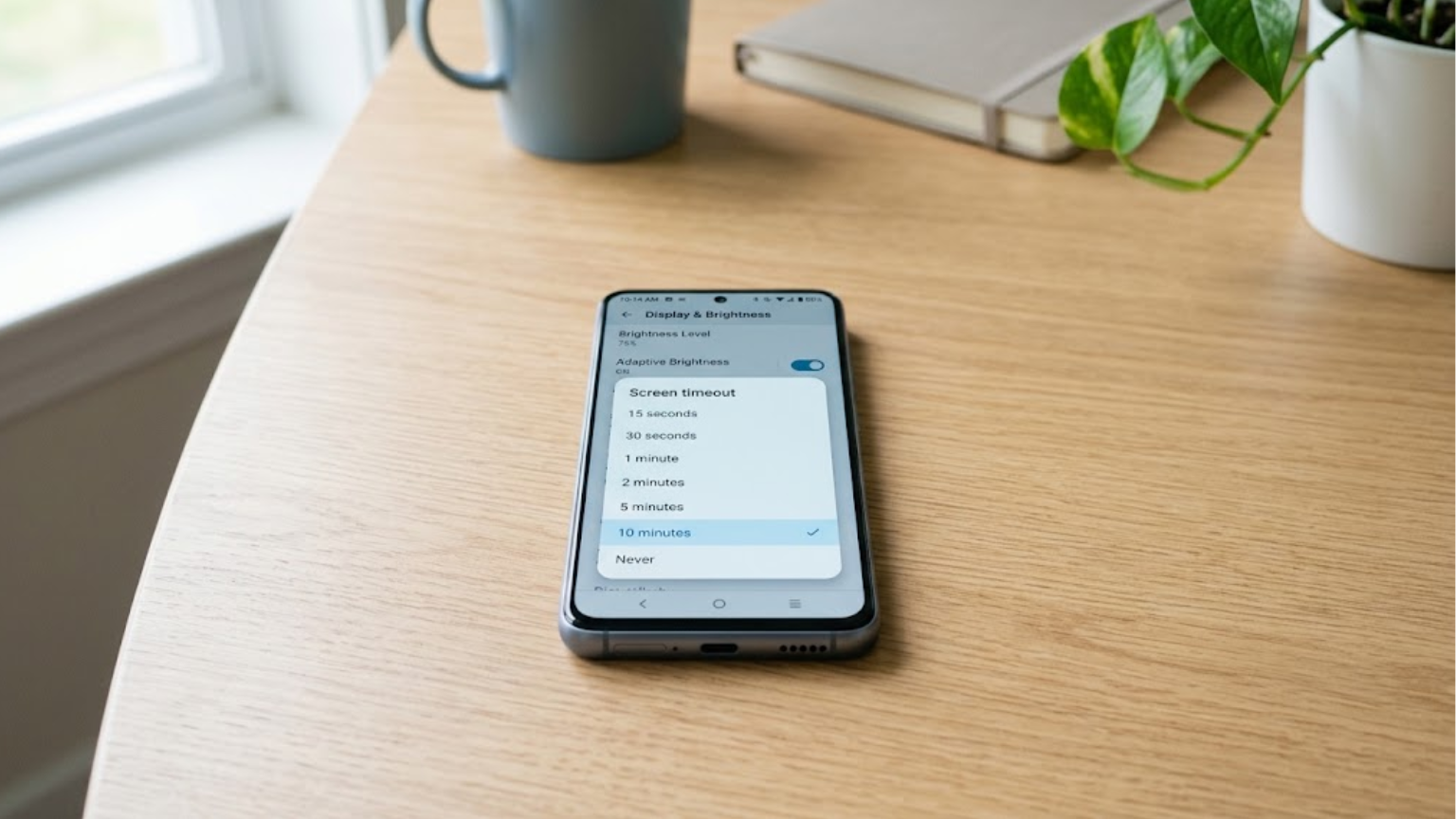
If your phone screen goes dark while you’re reading, following directions, or using an app, you can change how long it stays on.
In most cases, the phone isn’t actually turning off. The screen is timing out and locking after a period of inactivity. You can adjust this setting on both iPhone and Android.
If the entire phone shuts down instead of just locking, you’ll need to troubleshoot a different problem.
First, Check What Is Turning Off
Pay attention to what happens when the screen goes dark.
If the display turns black but comes back when you tap the screen or press the power button, you’re dealing with screen timeout or Auto-Lock.
If the phone completely shuts down and you have to start it again, changing the screen timeout won’t solve the problem.
This difference is important because automatic screen locking is normal. Phones use it to save battery and prevent the screen from staying active when you’re not using it.
How to Keep an iPhone Screen On Longer
On an iPhone, you can control this with the Auto-Lock setting.
- Open Settings.
- Tap Display & Brightness.
- Select Auto-Lock.
- Choose a longer time.
Pick a setting that matches how you use your phone. If you often read recipes or articles without touching the screen, a longer period can make things easier.
Some iPhones also offer a Never option. This prevents automatic locking, but it can use more battery and leaves your screen visible for longer when you’re not using it.
Auto-Lock Is Grayed Out
If you can’t change Auto-Lock, check whether Low Power Mode is turned on.
Battery-saving settings can affect display behavior. Turn Low Power Mode off temporarily, then check Auto-Lock again.
You can turn Low Power Mode back on afterward if you need to save battery.
How to Keep an Android Screen On Longer
Android phones don’t all use the same settings menu. The exact location can vary between manufacturers and models.
On many Android phones, try:
Settings → Display → Screen timeout
You may see Screen timeout, Sleep, or a similar option.
Choose a longer period to give yourself more time before the screen locks.
If you can’t find it, use the search box in the Settings app and search for screen timeout or screen sleep. This can be quicker than checking each menu.
See Also: FRP Bypass: Everything You Need to Know to Unlock Your Android Safely and Easily
Keep a Samsung Screen On While You’re Looking at It
Some Samsung Galaxy phones have a feature that keeps the screen on while you’re looking at it.
Look through the display or related advanced settings for an option that keeps the screen on while viewing it.
This can be useful when you’re reading something and don’t want to touch the display every few seconds. It also lets you keep a normal screen timeout instead of setting it to a very long period.
The feature may not be available on every Samsung model.
Keep a Google Pixel Screen On While You’re Looking at It
Some Google Pixel phones include Screen Attention.
When enabled, this feature can keep the display from turning off while you’re looking at it.
It’s useful when you’re reading or checking something on the screen but aren’t actively touching it. Once you’re no longer viewing the display, the phone can return to its normal timeout behavior.
This is different from setting the screen to stay on all the time.
What Is Always-On Display?
Always-On Display is another feature that people sometimes confuse with keeping the phone screen awake.
On supported phones, it can show information such as the time, date, or notifications while the main display is dimmed or off.
That’s useful when you only want to glance at basic information without fully waking or unlocking the phone.
It won’t keep a webpage, recipe, or app open on a fully active screen. For that, you need to change the screen timeout or use a screen-attention feature if your phone supports one.
Why Does My Phone Screen Keep Turning Off?
If you’ve already increased the timeout but the screen still goes dark sooner than expected, check these possibilities.
Battery-saving settings
Battery Saver or Low Power Mode can affect how your phone manages power.
Check whether one of these modes is active and see if the screen behavior changes after turning it off.
A different setting controls the screen.
Your phone may have separate settings for:
- Screen timeout
- Auto-Lock
- Battery saving
- Screen attention
- Always-On Display
Changing one of these doesn’t necessarily change the others.
Your phone is overheating.
A very hot phone may change its behavior to protect itself.
If your phone feels unusually hot, move it away from direct sunlight and stop demanding apps until it cools down.
Don’t put a hot phone in a freezer or use another extreme cooling method.
The entire phone is shutting down.
If the phone powers off instead of simply locking, the issue is different.
Battery problems, software issues, overheating, or a problematic app can cause unexpected shutdowns.
Start with a restart and install any available system updates. If the phone continues to shut down on its own, check the manufacturer’s support options.
Does Keeping the Screen On Use More Battery?
Yes. A display that stays active for longer generally uses more power than one that turns off sooner.
Screen brightness, the type of display, the app you’re using, and how long the screen stays active can all affect battery use.
You don’t need to choose the longest timeout available.
If you usually need an extra minute or two while reading, a small increase may be enough. If you’re following a recipe or using your phone as a reference while working, a longer setting can be more convenient.
Lowering the screen brightness can also reduce power use.
Which Setting Should You Use?
The best option depends on what you need.
The screen goes dark too quickly:
Increase the screen timeout or Auto-Lock period.
You want to read without touching the screen:
Use a longer timeout or a screen-attention feature if your phone has one.
You only want to see the time or notifications while the phone is locked:
Use Always-On Display if your device supports it.
The whole phone shuts down:
Look for a battery, software, overheating, or hardware problem instead of changing the screen timeout.
Should You Disable Automatic Locking?
You don’t always need to turn automatic locking off completely.
A reasonable timeout gives you a good balance between convenience, battery use, and privacy. If your phone stays unlocked while you’re away from it, someone nearby may be able to see information on the screen.
For everyday use, choose a timeout that fits your routine.
If you often read long pages, use a longer period. If you usually check your phone for only a few seconds, keeping a shorter timeout can save battery and reduce the time your screen remains active.
Final Answer
If you’re trying to figure out how to keep your phone from turning off, first check whether only the screen is going dark.
On an iPhone, open Settings → Display & Brightness → Auto-Lock and choose a longer period.
On Android, look for Screen timeout under the Display settings. Samsung and Google Pixel phones may also have features that keep the display on while you’re looking at it.
If the entire phone keeps powering off, screen timeout isn’t the cause. In that case, you’ll need to look into the phone’s battery, software, temperature, or hardware.
About the Author


1 thought on “How to Keep Your Phone From Turning Off”