
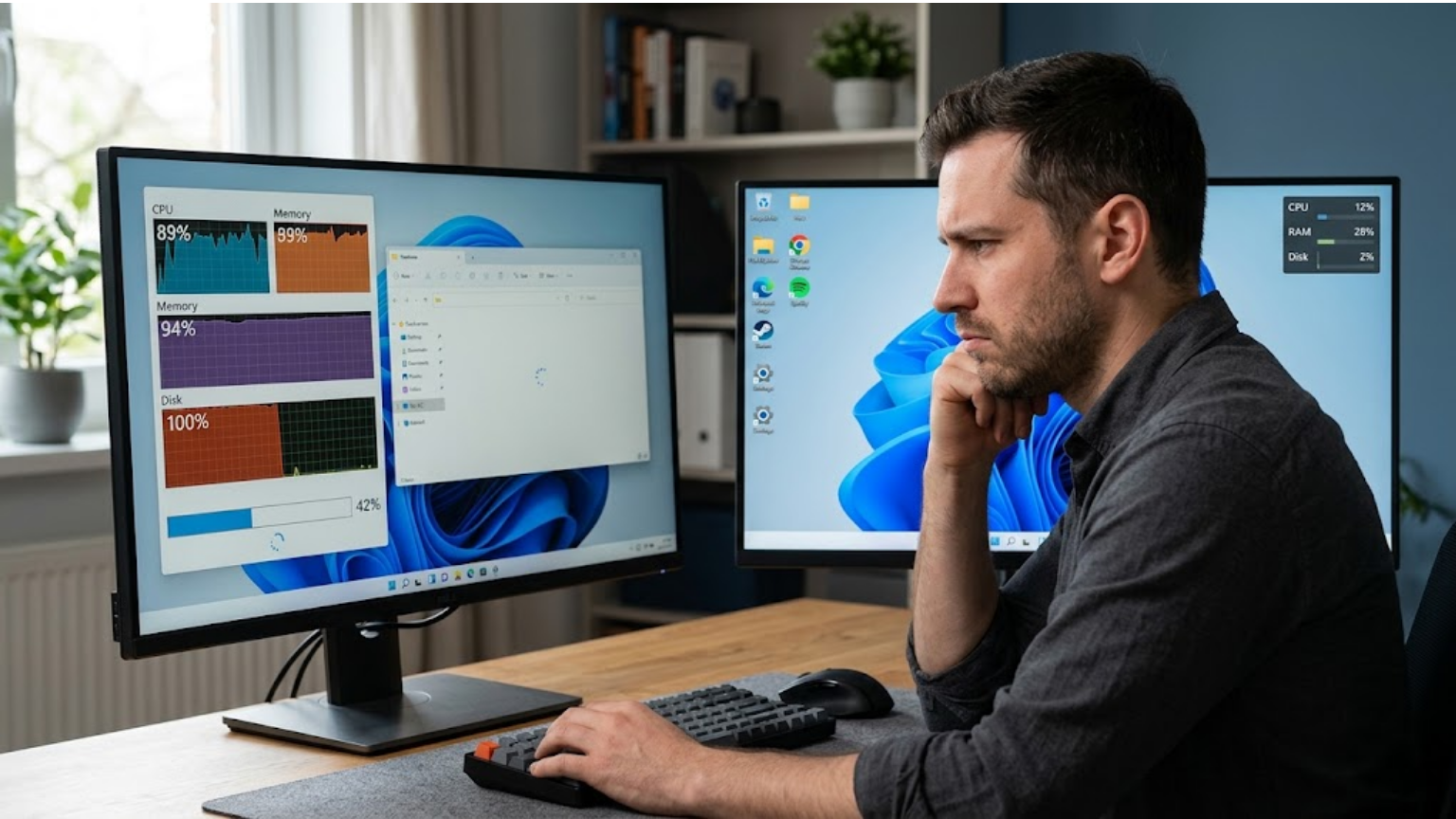
A slow PC can make simple tasks frustrating. Windows may take too long to start, apps can take ages to open, or everything may feel sluggish when several programs are running.
If you’re searching for how to fix slow PC problems, don’t begin by deleting random files or installing a PC cleaner. First, find out what’s causing the slowdown. The right fix depends on what your computer is doing when it becomes slow.
Common causes include too many startup apps, low storage, heavy background processes, malware, overheating, limited RAM, and older hardware. Windows also has built-in tools that can help you find the source of a performance problem.
1. Restart Your PC and Check When It Gets Slow
Start with a proper restart.
A restart closes your currently running apps and starts a fresh Windows session. It can help when a program or background process has stopped behaving normally.
After restarting, don’t immediately open every program you normally use. Open the application that usually feels slow and test it.
Pay attention to the timing.
If the computer works normally after restarting but becomes slow again later, a background process may be involved. If it’s slow as soon as Windows starts, startup apps or the storage drive are worth checking.
This simple test gives you a useful starting point before you change anything.
2. Use Task Manager to Find the Bottleneck
One of the most useful steps when figuring out how to fix slow PC problems is checking Task Manager.
Press Ctrl + Shift + Esc to open it. On the Processes tab, you can see how much CPU, memory, and disk activity different programs are using. Microsoft recommends checking these resources when troubleshooting poor Windows performance.
Sort the list by CPU, Memory, or Disk and watch what happens while the PC is slow.
These figures can give you a direction:
- CPU: Shows how much processing power programs are using.
- Memory: Shows how much RAM is currently being used.
- Disk: Shows activity involving your storage drive.
For example, if you have a browser with many tabs open, Photoshop running, and a video meeting in progress, high memory use may explain why the computer feels sluggish.
Don’t close an unfamiliar Windows process simply because it is using resources. Some system processes are necessary. Start with applications you recognize and aren’t using.
Also, don’t treat one high percentage as proof that something is broken. A demanding application can legitimately use a lot of CPU or memory while you’re working.
See Also: Kibard Meaning: Is It a Misspelling of Keyboard
3. Disable Unnecessary Startup Apps
Some programs launch automatically whenever Windows starts. You may not need all of them running immediately.
Open Task Manager > Startup apps and review the list. Windows shows the startup impact of these apps, which can help you decide which ones don’t need to launch automatically. Microsoft recommends disabling startup apps you don’t need.
For example, a game launcher doesn’t need to start with Windows if you only use it once or twice a week. The same may apply to certain music or messaging apps.
Turning off an app from startup doesn’t normally uninstall it. You can still open the program whenever you need it.
Don’t turn off everything, though. If you don’t recognize an entry, check what it does before changing it.
If Windows takes a long time to become usable after you sign in, startup apps are one of the first things worth checking.
4. Free Up Space on Your System Drive
Check how much free space is available on the drive where Windows is installed.
Go to Settings > System > Storage. Windows can show how storage is being used, including temporary files and installed apps. Microsoft recommends built-in storage tools such as Storage Sense when you’re running low on space.
Start with files you know you don’t need.
You can remove unnecessary temporary files, uninstall programs you no longer use, and empty the Recycle Bin. If you have large photos, videos, or old project files you want to keep, move them to another suitable storage location instead of deleting them.
Don’t remove a file simply because it is large. A large video folder isn’t junk if you still need those videos.
Freeing storage is most useful when the system drive is running low. It won’t solve every performance problem, but it can remove low storage as one possible cause.
5. Close Programs and Browser Tabs You Aren’t Using
Every open application uses some system resources.
Browsers can use substantial memory when many tabs are open. Five tabs may be fine, while dozens of tabs combined with Photoshop, a video call, and other applications can put much more pressure on available memory.
Close tabs you no longer need and check Task Manager again.
Do the same with desktop programs. If you opened an application hours ago and aren’t using it anymore, close it.
This simple test can tell you whether the computer is struggling with your current workload.
If closing several programs makes a noticeable difference, limited resources may be part of the problem. You can then check Memory usage in Task Manager instead of changing unrelated Windows settings.
6. Scan Your PC for Malware
Malware is another possible cause of unexplained slowdowns. Some malicious software can run in the background and consume system resources.
Windows includes Windows Security, so you can perform a malware scan without installing an unknown security program. Open Windows Security > Virus & threat protection and choose a scan option. Microsoft recommends Windows Security for protecting Windows devices from malware.
A scan is particularly worth considering if the slowdown appeared suddenly or you’ve noticed other unusual behavior, such as unfamiliar programs or unexpected browser activity.
Don’t assume every slow PC has malware, though. Low storage, heavy applications, limited RAM, overheating, and older hardware can cause similar symptoms.
7. Check Windows and Relevant Driver Updates
Windows updates can contain fixes for bugs and performance or compatibility problems. Microsoft includes checking for updates among its recommended steps for troubleshooting PC performance.
Go to Settings > Windows Update and check for available updates.
If the problem affects a particular device or application, a relevant driver update may also be worth checking. For example, graphics drivers can matter when games or graphics-heavy applications have problems.
Use Windows Update or the hardware manufacturer’s official support site when looking for drivers.
Avoid installing unfamiliar driver-cleaning programs simply because they claim your computer has dozens of outdated drivers. You don’t need random software to perform routine Windows updates.
One important point for older PCs: Windows 10 support ended on October 14, 2025. If you’re still using Windows 10, moving to a supported version of Windows may need to be part of your longer-term plan.
8. Check for Overheating
Does your computer work normally when you first turn it on but become slower after running for a while?
If so, overheating is one possibility worth investigating.
Pay attention to the fan and the computer’s temperature. Does the laptop become very hot? Does the fan stay loud while you’re doing something simple? Does performance drop during gaming or another demanding task?
These symptoms don’t prove that overheating is the cause, but they give you a reason to check the cooling system.
Make sure the computer’s air vents aren’t blocked. If you’re using a laptop, avoid placing it on a soft surface that can restrict airflow.
If the machine becomes extremely hot, shuts down unexpectedly, or has unusually loud fans during light use, it may need cleaning or professional inspection.
Changing Windows settings won’t solve a physical cooling problem, so don’t overlook the hardware when the slowdown follows a clear heat-related pattern.
9. Find Out Whether You Have an HDD or SSD
If your computer is several years old, check whether Windows is installed on an HDD or an SSD.
An HDD uses moving mechanical parts, while an SSD has no moving parts and generally provides much faster access to stored data. On an older computer, replacing a compatible HDD with an SSD can make starting Windows and opening applications feel much quicker.
Before buying an SSD, check your computer’s specifications and make sure the drive is compatible with it.
If your PC already has an SSD, don’t assume storage is the problem. Check CPU, memory, disk activity, software, and temperature first.
For an older computer, identifying the storage drive can also help you decide whether an upgrade is worth considering before replacing the entire machine.
10. Check Whether You’re Running Out of RAM
RAM affects how well your computer can handle several programs at the same time.
Imagine you’re running Chrome with 25 tabs, Photoshop, Spotify, and a video meeting. A computer with limited memory may struggle with that workload.
Open Task Manager and look at Memory while doing the tasks that normally make your PC slow.
If memory usage stays very high during your normal workload, adding RAM may help if your computer supports an upgrade.
But more RAM isn’t automatically the answer.
If memory isn’t the bottleneck, buying more won’t necessarily make the computer faster. Check your actual usage first instead of upgrading based on a general recommendation.
This is a better approach than buying hardware before you know what is limiting your PC.
11. Reduce Unnecessary Visual Effects
Windows uses animations and other visual effects. Microsoft includes reducing visual effects among its suggestions for improving Windows performance.
Search Windows for Adjust the appearance and performance of Windows and review the available Visual Effects settings.
This can be useful on older or lower-powered computers, but keep your expectations realistic.
Turning off animations won’t fix a failing drive or a computer that’s running out of RAM. It’s a small adjustment, not a replacement for fixing a hardware problem.
You can also check Settings > System > Power & battery. On supported Windows 11 PCs, the Best performance power mode favors performance over power savings. Microsoft notes that it can use more power and may make a laptop run warmer.
If you’re using a laptop on battery, consider whether the extra performance is worth the shorter battery life.
12. Know When Software Fixes Aren’t Enough
Sometimes the reason your PC is slow has little to do with Windows settings.
If you’ve checked startup apps, storage, malware, updates, memory, and temperature and the computer is still struggling, look at the hardware.
An older PC with an HDD and limited RAM may have difficulty handling the software you use today. Microsoft notes that older hardware may not improve much from software changes and that upgrading or replacing the PC may make more sense in some cases.
That doesn’t mean you need a new computer immediately.
If the storage drive is the weak point, an SSD upgrade may be enough. If the system is regularly running short of memory and supports a RAM upgrade, additional RAM may help.
But if several components are old or the computer can’t meet your everyday needs, continuing to change Windows settings may not be worth the time or money.
A Simple Troubleshooting Guide
If you’re unsure where to start, match the symptom to the most likely area to investigate:
Slow immediately after startup?
Check startup apps and whether Windows is running from an HDD.
Slow when many programs are open?
Check Memory usage in Task Manager.
Disk activity stays very high?
Find which programs are using the drive and check whether the computer has an older HDD.
The fan gets loud, and performance drops later?
Check airflow and possible overheating.
The PC suddenly became slow?
Check recent changes, unusual processes, Windows updates, and malware.
An older PC is slow all the time?
Look at the hardware before spending hours changing Windows settings.
Make changes one at a time when possible. If you turn off several programs, change multiple settings, and delete files all at once, you won’t know which change helped.
Conclusion
The best way to fix a slow PC is to find the cause before changing random settings.
Start with a restart and Task Manager. Check CPU, Memory, and Disk usage. Then review startup apps, free unnecessary storage, scan for malware, install relevant updates, and check for signs of overheating.
If the problem continues, look at the hardware. An old HDD, limited RAM, or aging components may be the real limitation. A targeted upgrade can sometimes make more sense than replacing the whole computer.
The important thing is to troubleshoot based on the symptoms. Find the bottleneck, make a sensible change, and test the PC again.
FAQs
1. Why is my PC suddenly slow?
A sudden slowdown can have several causes, including a resource-heavy background process, malware, low storage, an update, or another recent change. Open Task Manager while the PC is slow and check CPU, Memory, and Disk activity.
2. Does deleting temporary files make a PC faster?
It can help when your system drive is running low on space, but it isn’t a universal fix. If the real problem is limited RAM, an old HDD, overheating, or a resource-heavy process, deleting temporary files won’t address the main cause.
3. Will adding RAM speed up my computer?
It can help when your computer regularly runs short of memory during your normal workload. If memory isn’t causing the slowdown, adding more RAM may make little difference.
4. Is an SSD worth buying for an old PC?
An SSD can be a worthwhile upgrade for an older computer that still uses an HDD. It can make tasks such as starting Windows and opening applications feel much faster. Check your computer’s compatibility before buying one.
5. When should I replace my PC instead of fixing it?
Consider replacement when the computer no longer handles your normal tasks, has several hardware limitations, or remains slow despite sensible troubleshooting and practical upgrades. Microsoft recommends considering the age and limitations of the hardware when deciding whether an older PC should be upgraded or replaced.
About the Author


1 thought on “How to Fix a Slow PC: 12 Practical Ways to Speed Up Windows”