Introduction
Installing software on a computer is one of the most important skills every user should know. Whether you’re setting up a new laptop, installing a web browser, adding productivity tools, or downloading games, the process is usually quick and straightforward. Most programs can be installed in just a few minutes by following a few simple steps.
There are several methods you can use to install software on a computer, depending on how the program is distributed. You can install it from a downloaded file, a CD or DVD, a USB drive, or even through the Windows Command Prompt for certain applications. The right method depends on how the software is distributed and your computer’s hardware.
In this beginner-friendly guide, you’ll learn how to install a software on a computer using different methods, including downloading programs from the internet, installing from a disc, and using command-line tools. You’ll also discover common installation problems, practical troubleshooting tips, and best practices for downloading software safely. By the end of this guide, you’ll be able to install applications with confidence on your Windows PC.
What Is Software Installation?
Software installation is the process of adding a program or application to your computer so it can run properly. During the installation process, the computer copies the required files, updates system settings, and prepares the software to run correctly on your operating system. Once the process is complete, you can open and use the program whenever you need it.
You can install many different types of software depending on your needs. Common examples include web browsers like Google Chrome or Mozilla Firefox, office applications such as Microsoft Office, antivirus software, media players, graphic design tools, games, communication apps, and device drivers. System software, including operating systems and hardware drivers, is also installed to help your computer function correctly.
Proper software installation is important because it ensures the application works as intended and minimizes the risk of errors or security issues. Installing software from trusted sources helps protect your computer from malware, viruses, and unwanted programs. It also allows the software to receive updates, security patches, and new features, keeping your system secure and running smoothly. Taking a few extra minutes to install software correctly can improve your computer’s performance and provide a better overall user experience.
Things to Do Before Installing Software
Preparing your computer before installing new software can help prevent installation errors, compatibility issues, and data loss. Spending a few minutes on these checks ensures the installation process goes smoothly and the software performs as expected.
| Preparation Step | Why It Matters |
| Check system requirements | Confirms your computer can run the software properly. |
| Verify storage space | Prevents installation failures caused by insufficient disk space. |
| Download from trusted sources | Reduces the risk of malware, viruses, and fake installers. |
| Create a backup (Optional) | Protect your important files in case something goes wrong during the installation. |
Check System Requirements
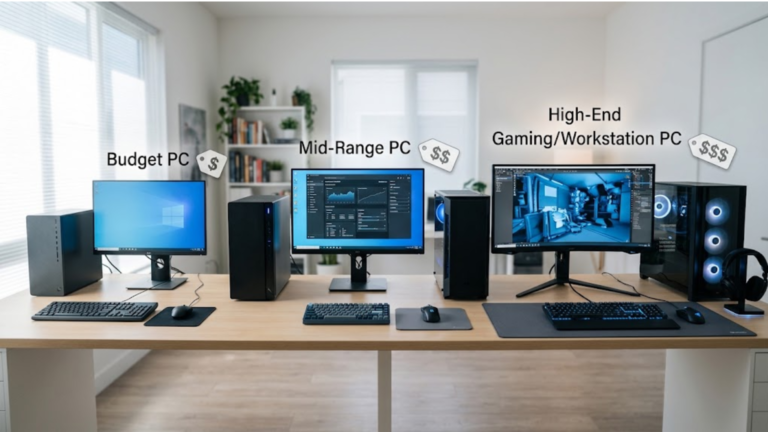
Before downloading any program, review its minimum and recommended system requirements. Most software developers list the required operating system, processor, RAM, storage space, and graphics requirements on their website. Installing software that exceeds your computer’s capabilities may result in poor performance or prevent the application from running altogether.
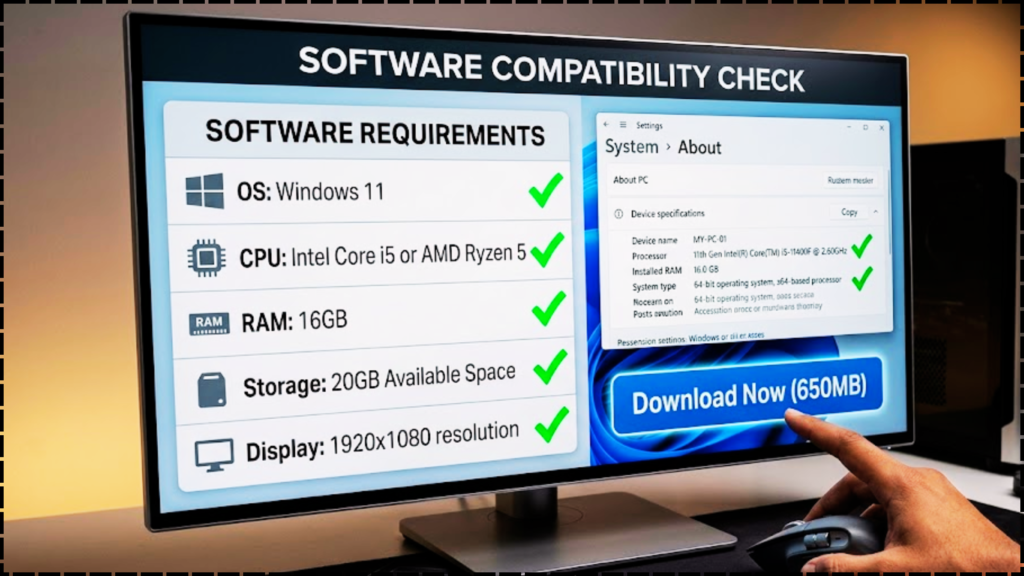
Typical system requirements include:
- Operating system (Windows 10, Windows 11, or macOS)
- Processor (CPU)
- Memory (RAM)
- Available disk space
- Internet connection (if required)
- Graphics card (for games or design software)
Verify Available Storage Space
Make sure your computer has enough free disk space for both the installation files and the software itself. Large applications, such as video editing tools or games, often require several gigabytes of storage. You can check your available storage by opening File Explorer > This PC and viewing the available space on your primary drive. If you’re running low on storage, remove unnecessary files or uninstall programs you no longer use before installing the software.
Download from Trusted Sources
Always download software from the official website of the developer or a trusted app store like the Microsoft Store. Avoid third-party download websites, as they may distribute outdated installers or bundle unwanted software with the program. Downloading from reliable sources helps protect your computer from malware, viruses, and security threats while ensuring you receive the latest version of the software.
Trusted places to download software include:
- Official developer websites
- Microsoft Store
- Mac App Store
- Reputable open-source repositories (for open-source software)
Create a Backup (Optional)
Although most software installations are safe, creating a backup is a smart precaution, especially before installing large programs, system utilities, or software that makes changes to your operating system. You can back up important files to an external drive, cloud storage, or create a Windows Restore Point. If anything goes wrong during installation, you can restore your files or system with minimal effort.
How to Install Software
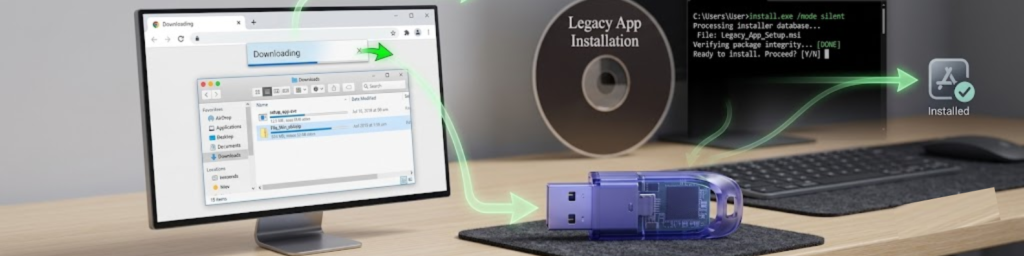
There are several ways to install software on a computer, depending on how the program is distributed. While most modern applications are downloaded from the internet, some software is still available on CDs or DVDs, and certain advanced programs can be installed using the Windows Command Prompt. The table below compares the most common installation methods.
| Installation Method | Best For | Difficulty |
| CD or DVD | Older software and games | Easy |
| External CD/DVD Drive | Computers without a disc drive | Easy |
| Downloaded Installer | Most modern applications | Easy |
| MS-DOS or Command Prompt | Advanced users and IT professionals | Intermediate |
Install Software from a CD or DVD
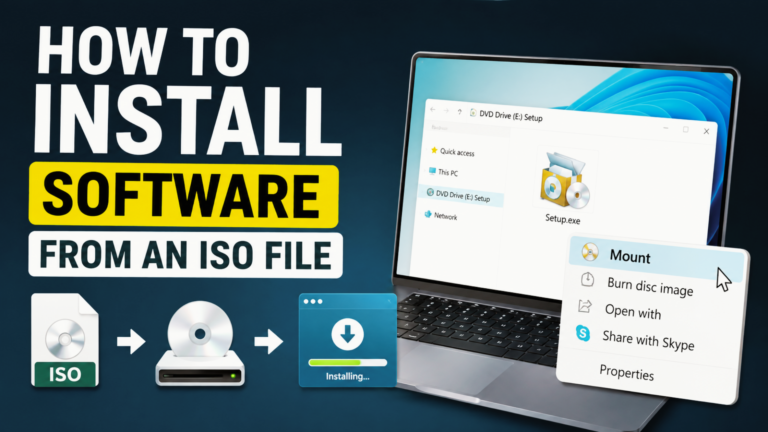
Although digital downloads are more common today, many older programs and business applications are still distributed on CDs or DVDs. If your computer has an optical drive, installing software from a disc is a simple process.
Follow these steps:
- Insert the software CD or DVD into your computer’s optical drive.
- Wait for the installation wizard to launch automatically.
- If nothing happens, open File Explorer and select the CD/DVD drive.
- Double-click the Setup.exe, Install.exe, or similar installation file.
- If prompted by User Account Control (UAC), click Yes.
- Read and accept the software license agreement.
- Select an installation folder, or keep the default location recommended by the installer.
- Click Install and wait for the process to complete.
- Select Finish and restart your computer if prompted.
Tip: Store the installation disc and product key in a safe place so you can reinstall the software if needed in the future.
Install a CD on a Computer with No Disc Drive
Many modern laptops and ultrabooks no longer include a built-in CD or DVD drive. Fortunately, you can still install software from a disc using alternative methods.
| Option | Description |
| External USB CD/DVD Drive | Connect a portable optical drive via USB and install the software normally. |
| Copy CD to a USB Drive | Use another computer with a disc drive to copy the installation files onto a USB flash drive. |
| Download the Digital Version | Visit the software developer’s website and download the latest installer using your license key if required. |
Method 1: Use an External USB CD/DVD Drive
- connect the external optical drive to an available USB port on your computer before inserting the disc.
- Insert the software disc.
- Open the disc in File Explorer.
- Run the installation file.
- Follow the on-screen instructions to complete the installation.
Method 2: Copy the Disc to a USB Flash Drive
- Insert the CD into another computer that has a disc drive.
- Copy all files from the disc to a USB flash drive.
- Connect the USB drive to your computer.
- Open the USB folder and run the setup file.
- Complete the installation.
Method 3: Download the Software Online
Many software companies now offer downloadable installers for customers who own the original product. Visit the developer’s website, sign in if necessary, and download the latest version.
How to Install from a Download
Downloading software from the internet is the most popular installation method because it is fast, convenient, and provides access to the latest version.
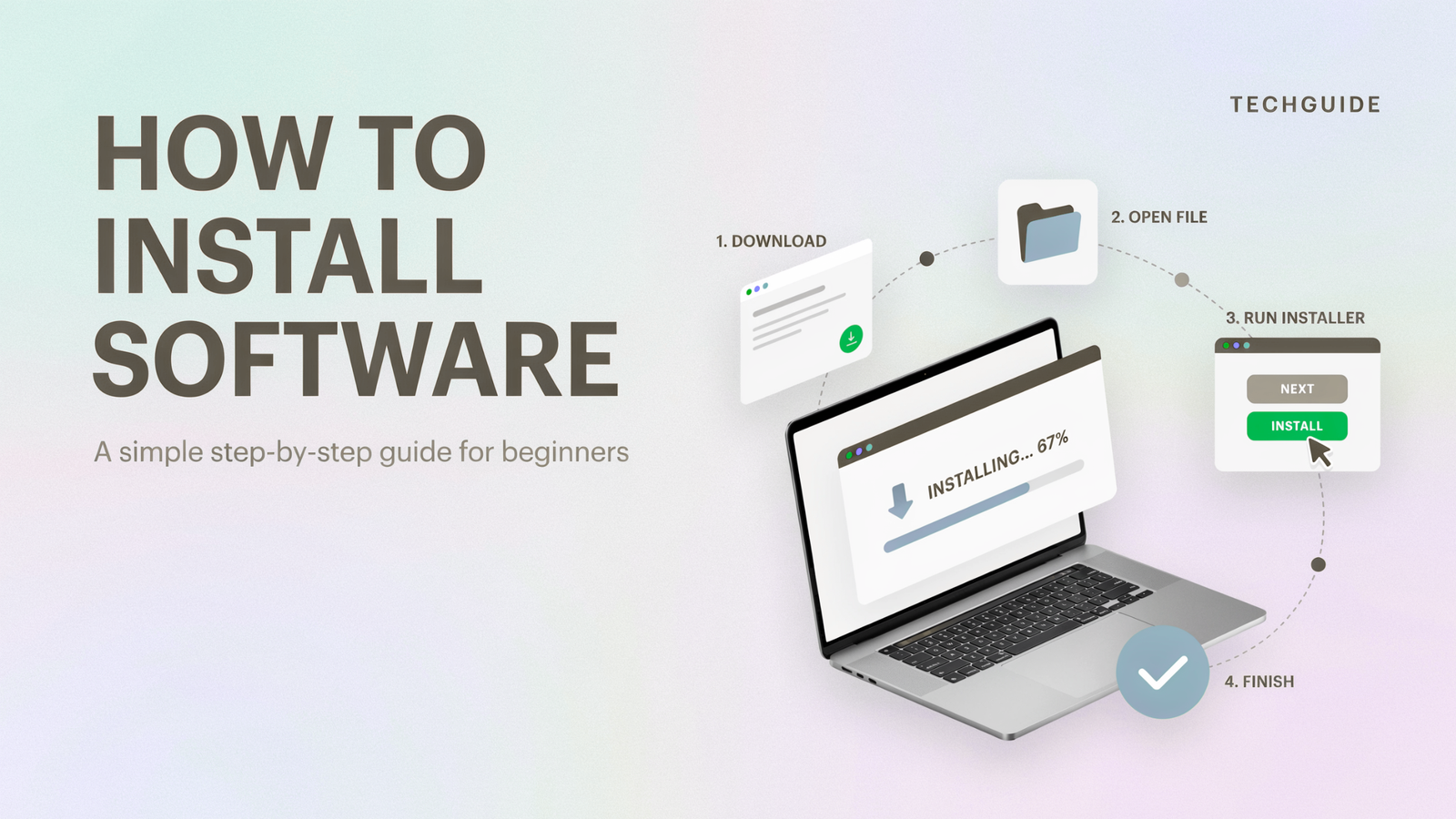
Follow these steps:
- Visit the software developer’s official website.
- Click the Download button.
- Save the installer to your computer.
- Open the Downloads folder.
- Double-click the downloaded .exe or .msi file.
- Click Yes if Windows asks for administrator permission.
- Follow the installation wizard.
- Accept the license agreement.
- Select the installation folder if you want to change the default location.
- Click Install.
- Wait for the installation to finish.
- Click Finish and launch the software.
Best Practice: Always download software from official websites or trusted app stores to avoid malware and fake installers.
Installing from MS-DOS or the Windows Command Line
Some legacy applications, server tools, and enterprise software can be installed using Command Prompt. This method is mainly used by IT professionals, developers, and advanced users who need more control over the installation process.
Steps to install software using Command Prompt
- Press Windows + R.
- Type cmd and press Enter.
- Navigate to the folder containing the installer using the cd command.
Example:
cd C:\Users\YourName\Downloads- Run the installer by typing its file name.
Example:
setup.exe
or
install.exe
- Press Enter.
- Continue with the on-screen instructions until the installation is complete.
Silent Installation (Optional)
Many enterprise applications support silent installation, which installs the software without displaying the setup wizard.
Example commands:
setup.exe /silentmsiexec /i software.msi /quietNote: Silent installation parameters vary by software. Refer to the application’s official documentation for supported command-line options.
By understanding these installation methods, you can install nearly any Windows application, whether it comes from a physical disc, a downloaded installer, or a command-line package. This knowledge makes it easier to set up new software, troubleshoot installation issues, and manage programs on your computer efficiently.
How to Fix Common Software Installation Errors
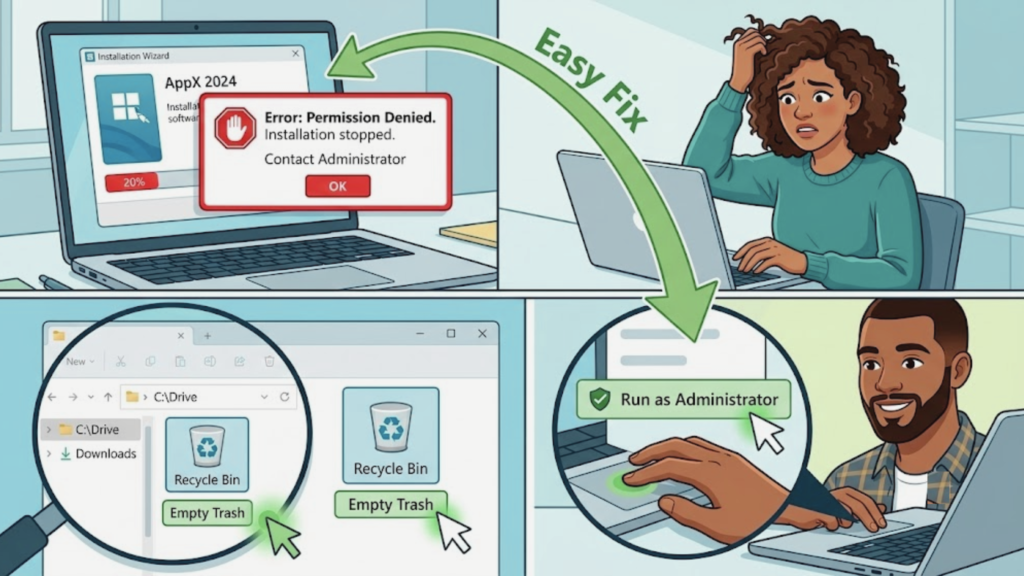
Even when you follow the correct installation steps, you may encounter issues that prevent software from installing properly. Most installation problems are easy to identify and fix with a few troubleshooting steps. The table below summarizes common software installation issues and how to resolve them.
| Problem | Possible Cause | Solution |
| Installation won’t start | Corrupted installer or incomplete download | Download the installer again and run it as an administrator. |
| Compatibility issues | Software doesn’t support your operating system | Check the system requirements or use Compatibility Mode. |
| Insufficient disk space | Not enough storage available | Free up disk space or install the software on another drive. |
| Permission or administrator errors | Limited user permissions | Sign in as an administrator or use Run as administrator. |
| Antivirus blocking the installer | Security software detects or blocks the file | Verify the installer is safe, then temporarily allow or whitelist it if necessary. |
Installation Won’t Start
If the installer won’t open, the file may be incomplete or damaged. This usually happens when the download doesn’t finish properly or the file becomes corrupted.
How to fix it:
- Download the installer again from the official website.
- Restart your computer and try again.
- Right-click the installer and select Run as administrator.
- Make sure the file was downloaded completely.
Compatibility Issues
Some older applications are not compatible with newer versions of Windows, while some newer programs require the latest operating system updates.
How to fix it:
- Verify the software supports your version of Windows.
- Install any available Windows updates.
- Use Compatibility Mode for older applications.
- Download the most recent version of the software to ensure better compatibility and access to the latest features.
Insufficient Disk Space
Large applications require enough free storage for both the installation files and future updates. If your drive is almost full, the installation may fail.
How to fix it:
- Delete unnecessary files.
- Empty the Recycle Bin.
- Uninstall programs you no longer use.
- Move large files to external storage or a cloud service to create more available disk space.
Permission or Administrator Errors
Windows may block software installation if your account doesn’t have administrator privileges or if system policies restrict installations.
How to fix it:
- Sign in using an administrator account.
- Right-click the installer and select Run as administrator to give it the required permissions.
- Close other applications before installing.
- Contact your IT administrator if you’re using a work or school computer.
Antivirus Blocking the Installer
Some antivirus programs may mistakenly identify legitimate software as suspicious, preventing the installation from continuing.
How to fix it:
- Confirm the installer was downloaded from the official website.
- Scan the file with your antivirus program.
- Temporarily turn off real-time protection only if you trust the source.
- Turn your antivirus protection back on as soon as the installation is complete.
Pro Tip: If the installation still fails after trying these solutions, restart your computer and attempt the installation again. A simple reboot often resolves temporary system conflicts.
Tips for Installing Software Safely
Installing software safely is just as important as installing it correctly. Following a few best practices can protect your computer from malware, unwanted programs, and security vulnerabilities.
| Safety Tip | Why It’s Important |
| Download only from official websites | Reduces the risk of fake or infected installers. |
| Avoid bundled software | Prevents unwanted apps and browser toolbars from being installed. |
| Scan downloaded files | Detects malware before opening the installer. |
| Keep software updated | Fixes bugs and security vulnerabilities. |
| Uninstall unused programs | Frees up storage and reduces security risks. |
Download Only from Official Websites
Always download software from the developer’s official website or trusted app stores. Official sources provide the latest version of the software and are much less likely to contain malware or modified installers.
Avoid Bundled Software
Some free applications include optional software, browser extensions, or toolbars during installation. Read each setup screen carefully and uncheck any offers you don’t want before clicking Next.
Scan Downloaded Files
Before opening an installer, scan it with Windows Security or another trusted antivirus program. This simple step helps detect malicious files and keeps your computer protected from viruses and ransomware.
Keep Software Updated
Software updates often include bug fixes, performance improvements, and important security patches. Enable automatic updates whenever possible, or check for updates regularly through the application’s settings.
Uninstall Programs You No Longer Use
Unused software takes up valuable storage space and may become a security risk if it is no longer supported. Periodically review your installed programs and remove applications you no longer need through Settings > Apps or the Control Panel.
Best Practice: Installing software from trusted sources, keeping applications updated, and removing unused programs are simple habits that help maintain a secure, fast, and reliable computer.
Conclusion
Installing software on a computer is a basic but essential skill that every user should know. Whether you’re installing a program from a downloaded file, a CD or DVD, an external drive, or even through the Windows Command Prompt, following the correct steps helps ensure a smooth and successful installation. Before you begin, always check the system requirements, verify that you have enough storage space, and download software only from trusted sources.
If you encounter installation issues, most problems—such as compatibility errors, insufficient disk space, or permission restrictions—can be resolved with simple troubleshooting steps. Following safe installation practices, keeping your software updated, and removing programs you no longer use will also help improve your computer’s performance and security.
By applying the tips and methods covered in this guide, you can confidently install software on your Windows PC while keeping your system secure, organized, and running efficiently. Whether you’re a beginner or an experienced user, these best practices will help you make the most of your computer and the software you rely on every day.
Frequently Asked Questions
How do I install new software?
To install new software, download the installer from the developer’s official website or use a trusted app store like the Microsoft Store. Open the downloaded file, follow the installation wizard, accept the license agreement, choose an installation location if needed, and click Install. After the installation is complete, launch the program from the Start menu or desktop shortcut.
How to install system software on a computer?
System software, such as an operating system or device drivers, is installed differently from regular applications. You can install an operating system using a bootable USB drive or installation media, while drivers are typically installed through Windows Update or downloaded from the hardware manufacturer’s official website. Before installing system software, it’s a good idea to back up your important files to avoid data loss.
How can I get software?
You can obtain software from several trusted sources, including:
- The developer’s official website.
- Microsoft Store for Windows applications.
- Mac App Store for macOS software.
- Software provided with new hardware.
- Licensed software distributed by your school or workplace.
Always choose reputable sources to ensure you’re downloading authentic and secure software.
How do I download PC software?
Downloading software is simple. Visit the software developer’s official website, click the Download button, and choose the version compatible with your computer. Save the installer to your Downloads folder, then open the file and follow the installation instructions. Avoid downloading software from unknown websites, as they may contain malware or outdated installers.
How do I install software on my PC?
To install software on your PC, double-click the downloaded .exe or .msi installer file. If Windows displays a User Account Control prompt, click Yes to continue. Follow the setup wizard, accept the license agreement, choose an installation location if necessary, and click Install. Once the process is complete, you can open the application from the Start menu or desktop shortcut.
Where can I download software?
The safest places to download software include the developer’s official website, the Microsoft Store, and other trusted digital marketplaces. These sources provide the latest versions, regular updates, and better security. Avoid downloading software from unofficial websites, as they may distribute modified installers, unwanted programs, or malicious files.
Also Read: Samsung Portable SSD Software 1.0 How to Install
About the Author