Introduction
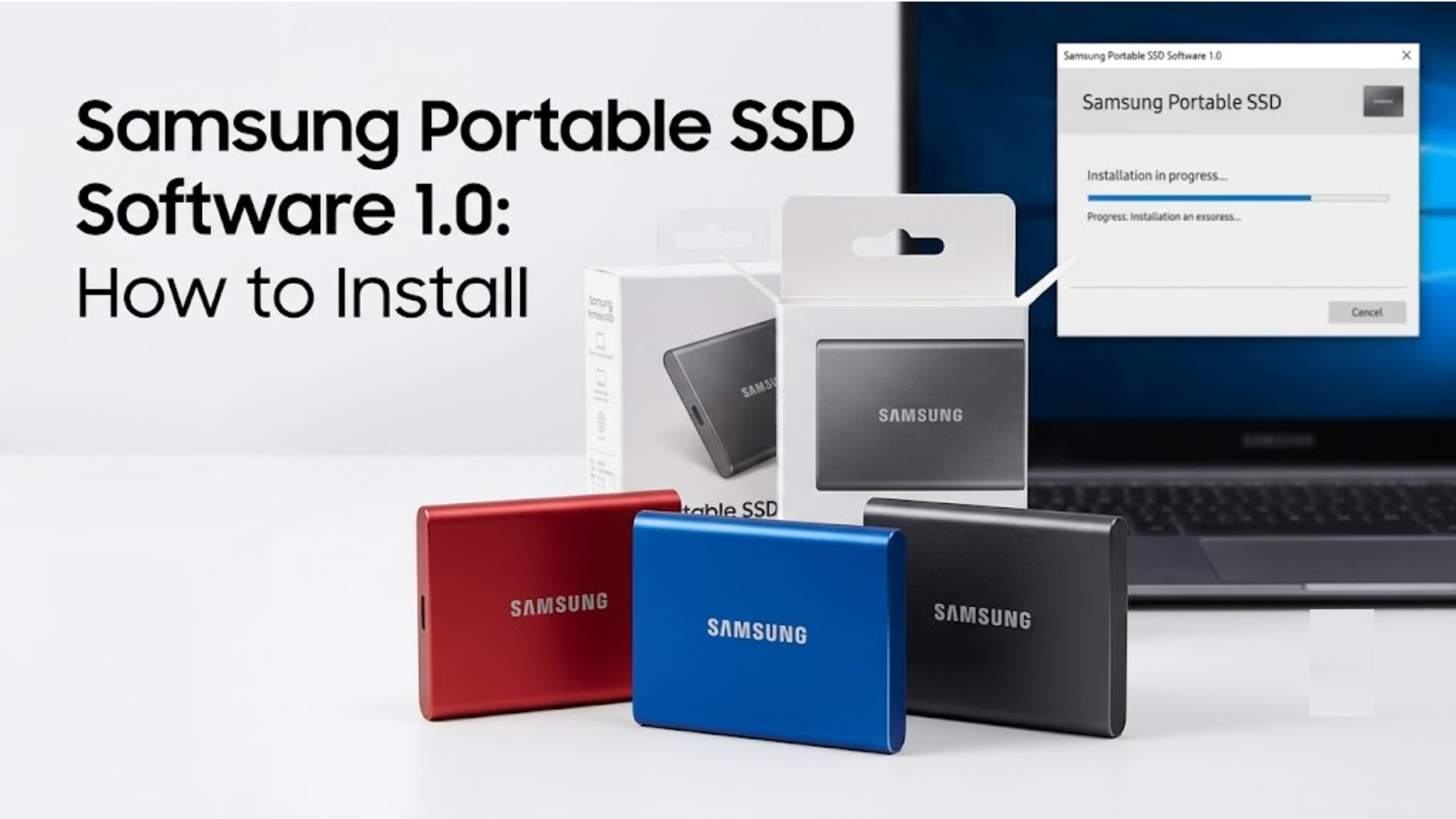
If you have recently acquired a Samsung Portable SSD and wish to access its complete features, the first step is to install Samsung Portable SSD Software 1.0. This software enables you to oversee your portable SSD, update its firmware, activate password protection, and keep track of essential device information. Regardless of whether you have a Samsung T5, T7, T7 Touch, or any other compatible model, the installation procedure is brief and uncomplicated.
In this guide, you will discover how to install Samsung Portable SSD Software 1.0 on both Windows and macOS. Additionally, we will outline the system requirements, downloading process, common installation challenges, and troubleshooting tips to assist you in setting up your SSD without any difficulties.
What Is Samsung Portable SSD Software 1.0?
Samsung Portable SSD Software 1.0 is an official application created by Samsung to assist users in managing compatible Samsung Portable Solid State Drives (SSDs). It offers a straightforward method for configuring security settings, installing firmware updates, and accessing essential device information through an intuitive, user-friendly interface.
The software is intended for use with specific Samsung portable SSD models, including the Samsung T5, Samsung T7, Samsung T7 Touch, and Samsung T7 Shield. Upon installation, it automatically recognizes your connected SSD and provides access to management tools designed to keep your drive secure and performing optimally.
A standout feature of this software is its support for AES 256-bit hardware encryption, enabling you to safeguard your files with a password. Additionally, it alerts you when new firmware updates become available, contributing to enhanced performance, compatibility, and device stability.
Whether you utilize your portable SSD for work, gaming, content creation, or backing up vital files, Samsung Portable SSD Software 1.0 simplifies device management and helps maintain its long-term performance.
System Requirements Before Installation
Before proceeding with the installation of Samsung Portable SSD Software 1.0, ensure that your computer fulfills the minimum system requirements. Verifying compatibility beforehand can help avert installation issues and guarantee that the software operates seamlessly.
Windows Requirements
If you are using a Windows PC, your system should satisfy the following specifications:
- Windows 7, Windows 8/8.1, Windows 10, or Windows 11
- Intel or AMD processor
- A minimum of 2 GB of RAM (4 GB or more is recommended)
- Approximately 100 MB of free storage space
- Admin rights to install the software
- An available USB 3.0, USB 3.1, USB 3.2, or USB-C port
MacOS Requirements
For Mac users, Samsung Portable SSD Software 1.0 is compatible with:
- macOS 10.13 (High Sierra) or later
- Intel-based Macs and supported Apple Silicon Macs with appropriate software versions
- At least 2 GB of RAM
- About 100 MB of free storage
- A USB-C or USB-A port with a suitable cable or adapter
Additional Requirements
- To ensure a smooth installation experience, keep the following recommendations in mind:
- Utilize the original Samsung USB cable that came with your SSD.
- Connect the SSD directly to your computer instead of via a USB hub.
- Ensure that your internet connection is active if you intend to download firmware updates post-installation.
- Close any unnecessary applications before launching the installer to prevent conflicts.
- Log in with an administrator account to enable the installation to proceed without permission issues.
Meeting these requirements prior to starting the installation process will facilitate the successful setup of Samsung Portable SSD Software 1.0 and minimize the likelihood of configuration or connectivity challenges.
How to Download Samsung Portable SSD Software 1.0
Downloading Samsung Portable SSD Software 1.0 is a simple process, but it’s important to get the installer from Samsung’s official support page. This ensures you receive a genuine, malware-free version of the software and the latest compatibility updates.
Step 1: Visit the Samsung Support Website
Open your preferred web browser and go to Samsung’s official support website. Search for your portable SSD model, such as the Samsung T5, T7, T7 Touch, or T7 Shield, and navigate to the Downloads or Support section.
Step 2: Select the Correct Software Version
Choose Samsung Portable SSD Software 1.0 that matches your operating system. Samsung provides separate installation files for Windows and macOS, so make sure you download the correct version for your device.
Step 3: Download the Installer
Click the Download button and wait for the installer to finish downloading. Depending on your browser, the file will usually be saved in your Downloads folder.
Step 4: Verify the Download
Before running the installer, confirm that the file was downloaded completely and that it came from Samsung’s official website. Avoid downloading the software from third-party websites, as unofficial files may be outdated, modified, or unsafe.
Once the download is complete, you’re ready to install Samsung Portable SSD Software 1.0 and start managing your portable SSD securely.
How to Install Samsung Portable SSD Software 1.0 on Windows and macOS
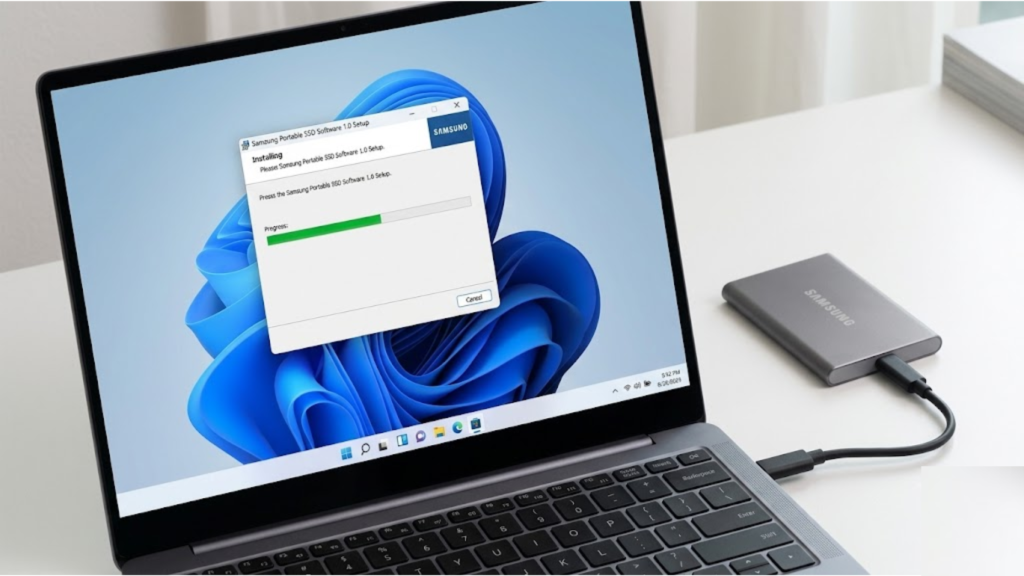
After downloading the installer, you can install Samsung Portable SSD Software 1.0 in just a few minutes. The process is similar on both Windows and macOS, with only a few operating system-specific differences.
Install Samsung Portable SSD Software 1.0 on Windows
- Connect your Samsung Portable SSD to your computer using the original USB cable.
- Open the folder where the installer was downloaded.
- Double-click the Samsung Portable SSD Software 1.0 setup file.
- If the User Account Control (UAC) prompt appears, click Yes to allow the installer to make changes.
- Read and accept the license agreement, then click Next.
- Choose the installation location or keep the default folder.
- Click Install and wait for the setup process to finish.
- Select Finish to complete the installation.
- Launch the software from the Start menu or desktop shortcut.
- Connect your SSD if it is not already connected. The software should automatically detect the device.
Install Samsung Portable SSD Software 1.0 on macOS
- Connect your Samsung Portable SSD to your Mac.
- Open the downloaded .dmg installation file.
- Drag the Samsung Portable SSD Software icon into the Applications folder.
- Open the application from Applications or Launchpad.
- If macOS displays a security warning, go to System Settings > Privacy & Security and allow the application to run.
- Grant any required permissions requested by the software.
- Wait for the application to detect your Samsung Portable SSD.
- If a firmware update is available, follow the on-screen instructions to install it before using your SSD.
Complete the Initial Setup
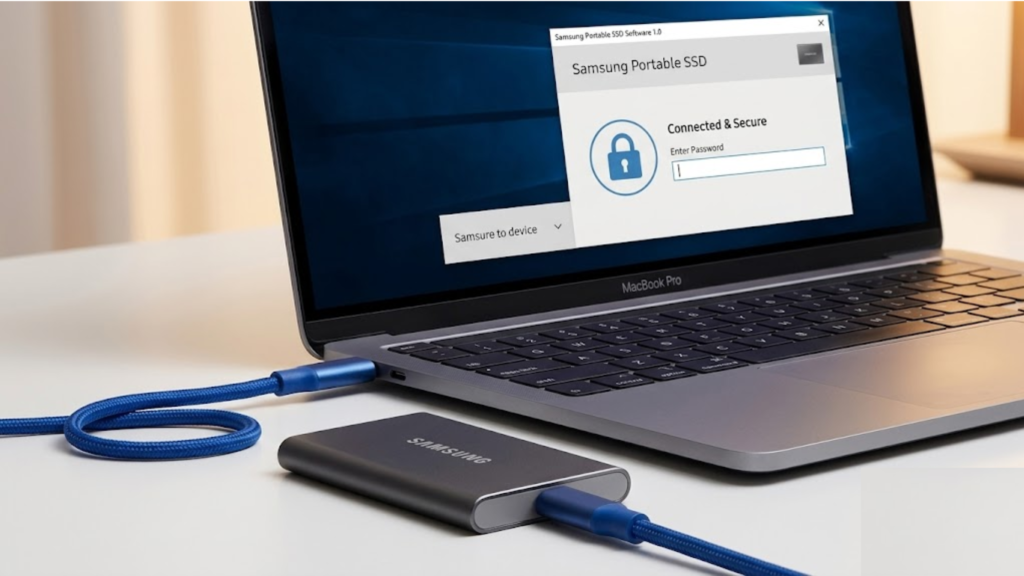
Once the software recognizes your SSD, you can configure its settings. If your drive supports security features, create a strong password to enable AES 256-bit hardware encryption. You can also check the firmware version, install available updates, and review your device information from the main dashboard.
After completing these steps, Samsung Portable SSD Software 1.0 is ready to use, allowing you to manage your portable SSD securely and keep it running at its best.
Common Installation Issues and How to Fix Them
Although Samsung Portable SSD Software 1.0 is easy to install, you may occasionally run into issues during setup. Most problems can be resolved with a few simple troubleshooting steps. Below are the most common installation issues and their solutions.
Installer Won’t Open
If the installation file doesn’t launch, make sure it has finished downloading completely. On Windows, right-click the installer and select Run as administrator. If you’re using macOS, verify that the application is allowed to run under System Settings > Privacy & Security.
Samsung Portable SSD Is Not Detected
If the software cannot detect your SSD, disconnect and reconnect the drive using the original Samsung USB cable. Try a different USB port and avoid using USB hubs or extension cables. Restarting your computer may also help the software recognize the device.
Installation Failed
An installation may fail if you don’t have administrator privileges or if another program is interfering with the setup. Close all unnecessary applications, temporarily turn off antivirus software if needed, and run the installer again. Also, confirm that your operating system is supported by Samsung Portable SSD Software 1.0.
Software Won’t Launch After Installation
If the software installs but won’t open, restart your computer and try launching it again. If the problem continues, uninstall the application completely and download a fresh copy from Samsung’s official support website before reinstalling it.
Firmware Update Errors
A firmware update may fail if the SSD is disconnected during the process or if the connection becomes unstable. Keep the SSD connected until the update finishes, avoid shutting down your computer, and use a reliable USB connection. If the update is interrupted, reconnect the drive and try the update again.
Password or Security Issues
If you’ve enabled password protection but cannot unlock the SSD, double-check that you’re entering the correct password. Password-protected Samsung Portable SSDs use hardware encryption, so forgetting the password may limit access to your stored data. Store your password in a secure location to prevent future issues.
By following these troubleshooting tips, you can resolve most installation and setup problems quickly. If the issue persists, download the latest version of Samsung Portable SSD Software from Samsung’s official website or contact Samsung Support for further assistance.
Conclusion
Installing Samsung Portable SSD Software 1.0 is a simple but important step for getting the most out of your Samsung Portable SSD. The software makes it easy to manage your drive, update firmware, enable password protection, and monitor device information from one convenient interface. By following the installation steps and ensuring your system meets the required specifications, you can complete the setup without any hassle.
If you encounter any issues during installation, the troubleshooting tips in this guide can help resolve the most common problems quickly. For the safest experience, always download Samsung Portable SSD Software 1.0 from Samsung’s official website and keep both the software and your SSD firmware up to date. Doing so will help maintain optimal performance, improve security, and ensure your portable SSD continues to work reliably for years to come.
Frequently Asked Questions (FAQs)
Is Samsung Portable SSD Software 1.0 free to download?
Yes. Samsung Portable SSD Software 1.0 is completely free for users with compatible Samsung Portable SSDs. You can download it from Samsung’s official support website.
Which Samsung SSD models support Samsung Portable SSD Software 1.0?
The software supports several Samsung portable SSD models, including the Samsung T5, Samsung T7, Samsung T7 Touch, and Samsung T7 Shield. Always check your device’s support page to confirm compatibility.
Can I install Samsung Portable SSD Software 1.0 on Windows 11?
Yes. Samsung Portable SSD Software 1.0 is compatible with Windows 11, as well as Windows 10 and some earlier versions of Windows, depending on your SSD model.
Does Samsung Portable SSD Software 1.0 work on macOS?
Yes. Samsung provides a macOS version of the software for supported Mac computers. Download the correct installer for your version of macOS.
Why is my Samsung Portable SSD not detected after installation?
This issue is usually caused by a faulty USB cable, an unsupported USB hub, outdated firmware, or connection problems. Try reconnecting the SSD, using a different USB port, or restarting your computer.
How do I update the firmware using Samsung Portable SSD Software 1.0?
Open the software with your SSD connected. If a firmware update is available, you’ll receive a notification. Follow the on-screen instructions and keep the SSD connected until the update is complete.
Do I need Samsung Portable SSD Software 1.0 to use my SSD?
No. Your Samsung Portable SSD will work as a standard external storage device without the software. However, you’ll need the software to access features like password protection, firmware updates, and device management.
Is Samsung Portable SSD Software 1.0 safe to install?
Yes. The software is safe when downloaded from Samsung’s official website. Avoid downloading installation files from third-party websites to reduce the risk of malware or modified software.
Can I uninstall Samsung Portable SSD Software 1.0 later?
Yes. You can uninstall the software at any time through the Windows Control Panel, Windows Settings, or the Applications folder on macOS. Removing the software does not delete the files stored on your SSD.
What should I do if Samsung Portable SSD Software 1.0 keeps crashing?
Restart your computer, reconnect your SSD, and make sure you’re using the latest version of the software. If the problem continues, reinstall the application or contact Samsung Support for additional help.
Also Read: Best Programming Language for Beginners
About the Author